

Release of Canvas Features
(Summer Term 2026)

  • last updated on 12 May 2026

The feature has been released.


Course Accessibility Checker
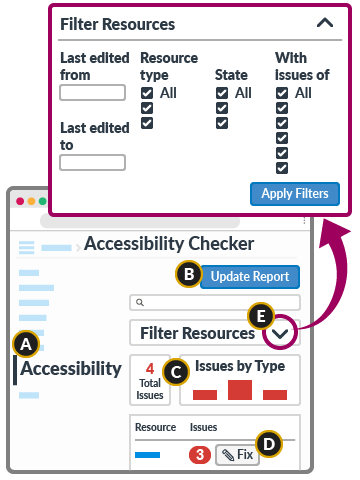
Course Area Accessibility, Pages, Assignments (description/instruction per assignment)
Description You can use the Course Accessibility Checker to design the course while considering accessibility attributes. Currently, it can scan Pages and descriptions/instructions of Assignments in a Canvas course.
  1. In Course Navigation, click the Accessibility link to open it.
  2. Click the Scan Course or Update Report button to start the scan.
    Note: The scan can take anything from a few seconds to a few minutes depending on the size of the course.
  3. The interface displays the total number of active issues on the course and a bar chart illustrating their distribution by issue type.
  4. The number of issues can be shown for each resource. To view the issue description and fix each issue, click the Fix button to open the tray on the right. Remember to Apply the correction in each issue.
  5. You can search by resource titles. To manage Filter Resources, click (down arrow) to expand the options below.
    • Last edited from (start date) and Last edited to (end date)
    • Resource type - Pages / Assignments
    • State - Published / Unpublished
    • With issues of - Alt text / Skipped heading level / Heading length / Duplicate links / Missing table headers / Table headers set up incorrectly / Missing table caption / List formatting / Text contrast
    Remember to Apply Filters to complete the updates.

To check the accessibility of any rich content in other Canvas content types (e.g., Announcements, Discussions), please click the (accessibility) icon at the bottom of the Rich Content Editor when adding or editing content.

Released on 12 May 2026
Role Teacher, TA, Designer
Guide How do I use the Course Accessibility Checker in Canvas?
How do I use the Accessibility Checker in the Rich Content Editor?