

Teacher Guide for Canvas Classic Quizzes (Legacy)
- last updated on 25 August 2026
Before Starting Quiz
- (Optional) Give a Student Extra Time in Published Quiz with Time Limit
- (Optional) Require Students Using Respondus LockDown Browser
During the Quiz
After the Quiz
More Guides
Before Starting Quiz
Step 1 - Create a Quiz with Settings
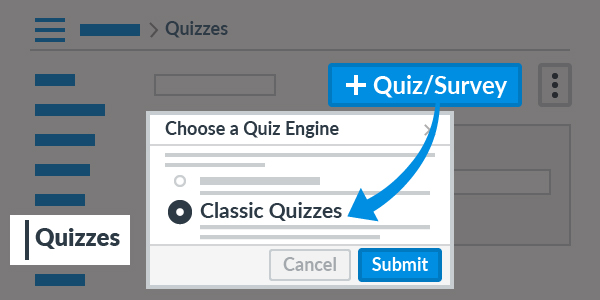
In the Quizzes page, click the button.
On the pop-up "Choose a Quiz Engine", select the Classic Quizzes option and then click the button.
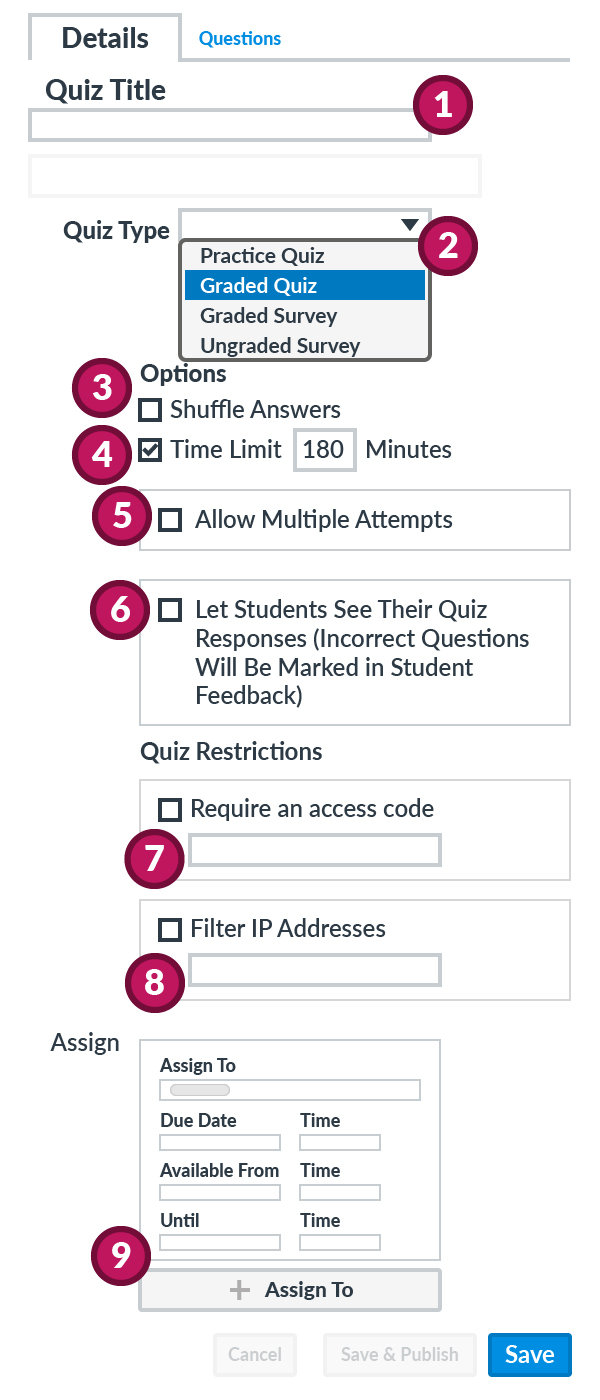
You need to choose from a variety of options on the Details page.
- Input the quiz name in the Quiz Title.
- Select one of the following options the Quiz Type.
- Graded Quiz
A column for the graded quiz would be automatically created on the "Grades" page. - Practice Quiz
It can be used as a self-test for students. The results DO NOT display on the "Grades" page.
- Graded Quiz
- (Optional) Enable Shuffle Answers to randomize choices in questions such as multiple-choice.
- Set the Time Limit by entering the number of minutes for a quiz attempt.
- If the time limit is not provided, you cannot give a student extra time and monitor the running quiz.
- For mid-term tests and examinations, you should NOT allow Multiple Attempts.
- Same as the previous step, you may uncheck the option Let Students See Their Quiz Responses first.
- If you allow students to view their quiz responses or correct answers, please turn on this option.
- (Optional) Require an Access Code
Students must enter the access code before taking the quiz. - (Optional) Filter IP Addresses
Students must take the quiz from computers with the fixed IP addresses in CSC Teaching Studios. - In the "Assign To ......" block, set the fields for the quiz available period.
- Due Date (for marking late submissions)
- Available From / Until (allowed submission period)
Then click the button.
Step 2 - Add Questions to Unpublished Quiz
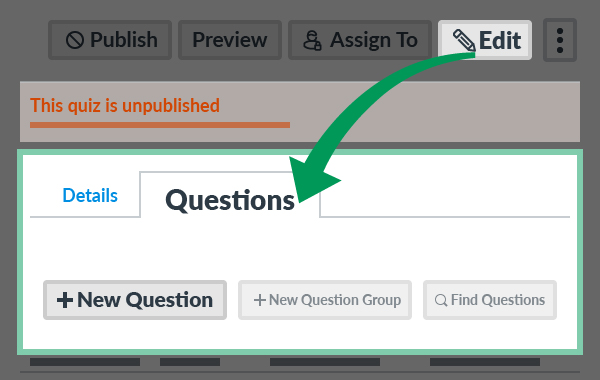
Revisit the unpublished quiz. After clicking the button, under the Questions tab, click the to start adding questions.
After clicking the button, you can Select Question Type in the question type drop-down menu.
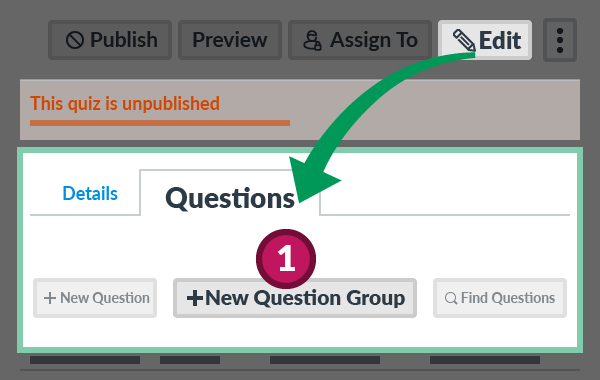
If the quiz questions need to be randomized, visit the Questions tab after clicking the button.
- Click the button.
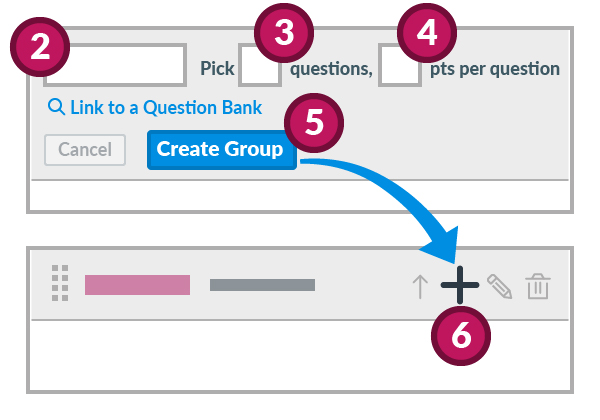
- Input the question group name.
- Decide how many questions you want Canvas to randomly select from the group.
- Input the number of points assigned to each question.
- Click the button.
- Click the + (Add) button inside this question group to build questions.
Canvas Instructor Guide:
How do I create a quiz with a question group to randomize quiz questions?
Step 3 - Preview and Publish Quiz
We recommend you to click the button to check the quiz before publishing it.
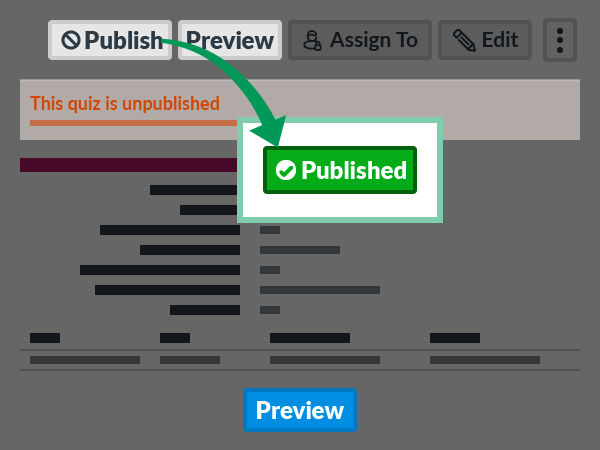
If the quiz is ready for your students after checking it, click the button. Then the button should be changed to the indicator.
(Optional) Give a Student Extra Time in Published Quiz with Time Limit
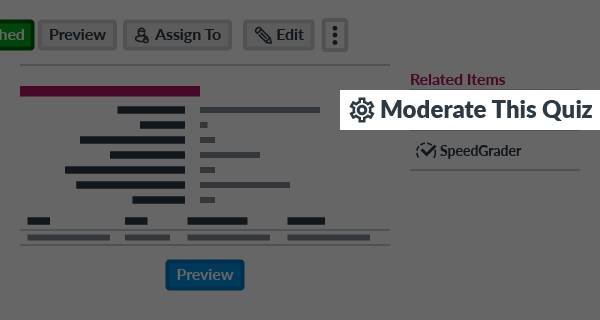
To provide extra time for students with Special Educational Needs (SEN), please click the in the published quiz.
- If the Time Limit is not set in the quiz settings, extra time cannot be granted to a student.
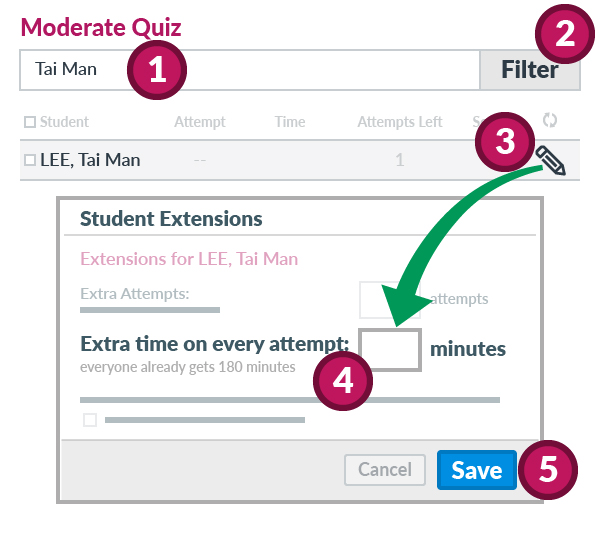
- Type the first or family name of the student.
- Click the button.
- Click the (Edit) icon on the student record.
- Input the Extra Time in minutes.
- Click the button.
Repeat the steps above to provide extra time for another student.
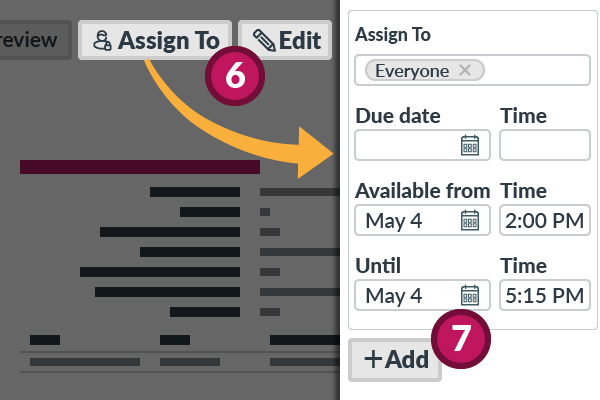
Revisit the quiz page.
- Click the button.
- On the right tray, click the button.
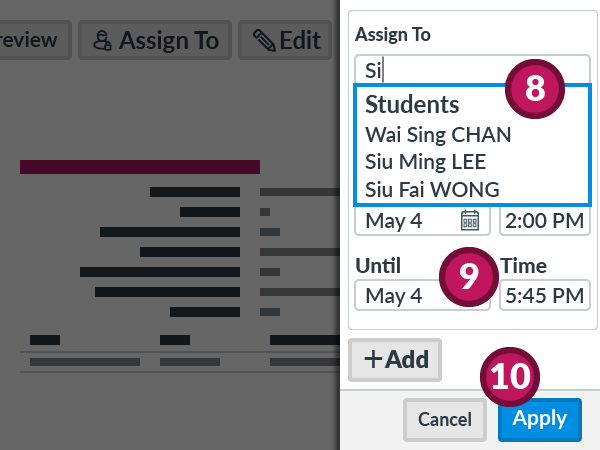
- Input the first or family name of the student, select the right name.
- Set the quiz available period longer.
- Click the button after adding extra "Assign To".
During the Quiz
Monitor Running Quiz with Time Limit
When the quiz is available to the students, you can view the status while students are attempting the graded quiz.
To monitor the running quiz, please click the on the quiz page.
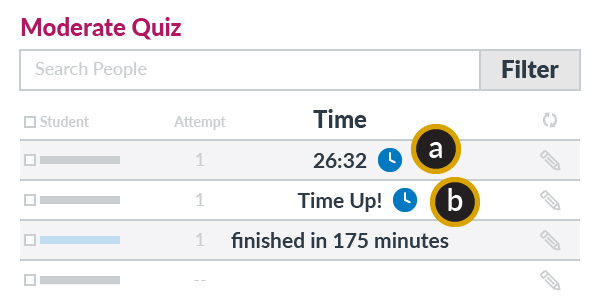
- When the student is attempting the quiz, the running time remaining will be shown.
- When time has expired, Time Up! will be displayed.
You may extend the time of the current attempt for a student by clicking the (Clock) icon.
- If the Time Limit is not set in the quiz settings, the student's current attempt cannot be extended.
After the Quiz
View Quiz Submissions
After students submit the quiz, please visit the quiz page. You can view their submissions using the methods listed below.
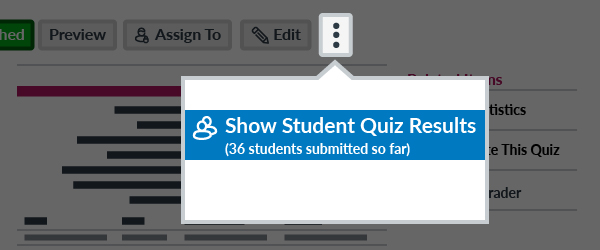
Click the (Options) button, then select the Show Student Quiz Results from the pop-up menu.
Canvas Instructor Guide:
How do I view student results in a quiz?
How do I view practice quiz results in a course?
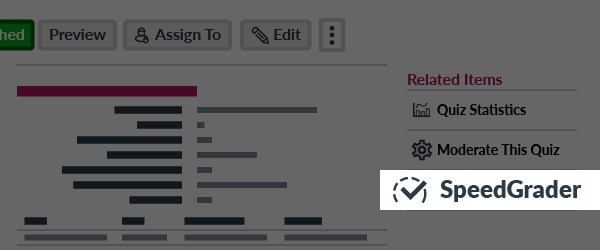
For a graded quiz, open the SpeedGrader to view and grade the student submissions.
Canvas Instructor Guide:
How do I get to SpeedGrader from an assignment, quiz, or graded discussion?
How do I use SpeedGrader?