

Teacher Guide for Canvas Discussions
- last updated on 24 February 2026
Canvas Discussions provide a built-in interface for class and group conversations. They can be set up as graded assignments that connect to the Grades.
Create a Discussion with Settings
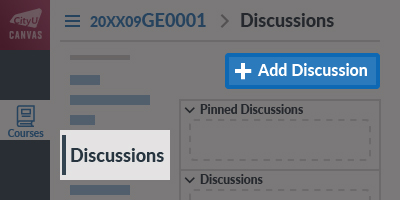
In the Discussions page, click the button.
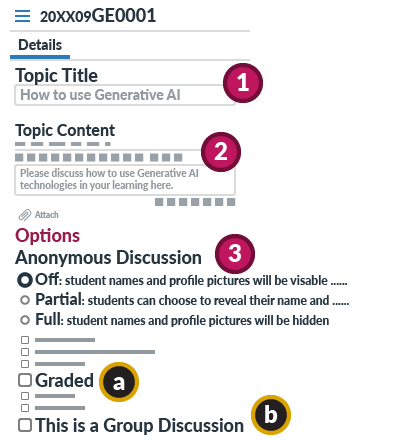
- Input the discussion topic name in the Topic Title.
- Type the discussion content using the Rich Content Editor.
- By default, discussions are not anonymous.
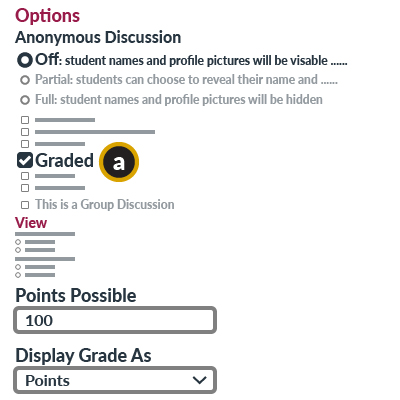
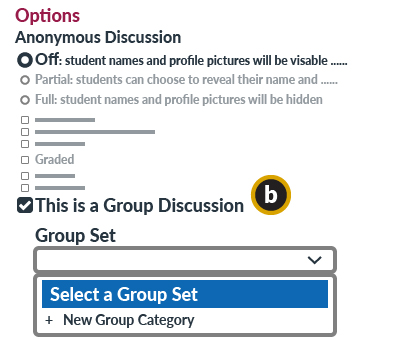
If the Off option is selected, the options below for specific discussion types can be enabled.- Graded
(Create a graded discussion as an assignment) - This is a Group Discussion
(Create a discussion of the same topic per group)
- Graded
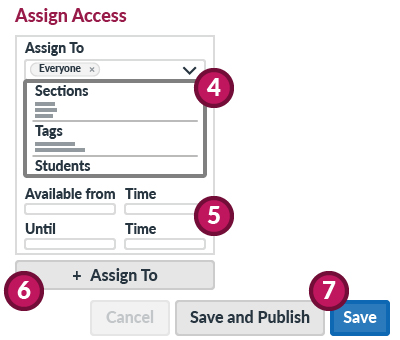
(Optional) Under the Assign Access,
- If you assign the discussion to specific sections or students, click the Assign To field, then select the assignees.
- If you set the discussion availability times, input the date and time in the Available From or Until field.
- If you assign the discussion to other assignees with different times, click the button, then repeat steps 4 and 5.
In step 7, click the (ready) or (publish it later) button.
Canvas Basic Guide:
What are Discussions?
Manage Discussions and Customize Student Settings
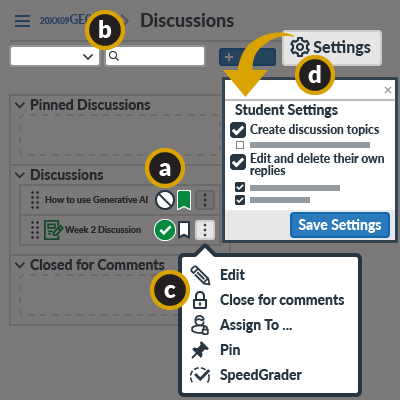
In the Discussions page, you can view the list of all discussions within a course and modify discussion settings.
- To publish the discussion, click the to change the status to .
The subscription ( or ) icon is related to the notification option. - You can filter the discussion list or search the discussions by title or author.
- You can manage individual discussion after clicking the button on the discussion. If it is a graded discussion, you can open the SpeedGrader directly.
- To modify the Student Settings of all course discussions (e.g., do not allow students to create new topics), click the button to open the customization pop-up.
- The "Student Settings" cannot be used to customize all group discussions.
Canvas Instructor Guide:
How do I use the Discussions Index Page?