

Getting Started Guide for Students Using Canvas
- last updated on 31 August 2026
Log In to Canvas
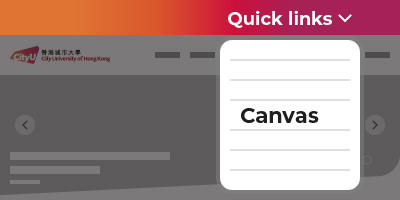
Visit the CityUHK website (www.cityu.edu.hk). Click on the Quick Links at the top, then click the Canvas item on the popup menu.
You can also access the CityUHK Canvas service directly via the link below.
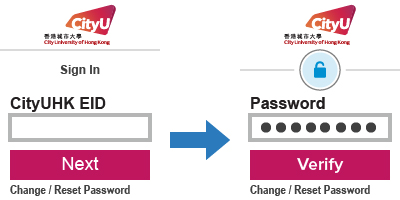
Input your CityUHK EID and click the "Next" button.
On the next screen, input the password and click the "Verify" button.
- After "Verify", you may be required to proceed the Multi-Factor Authentication (MFA). Please contact the IT Service Desk for any questions about MFA or login issue.
Use Dashboard and Global Navigation
After logging in to Canvas successfully, the Dashboard is the first thing you will see while the Global Navigation menu is located on the left side of every page in Canvas.
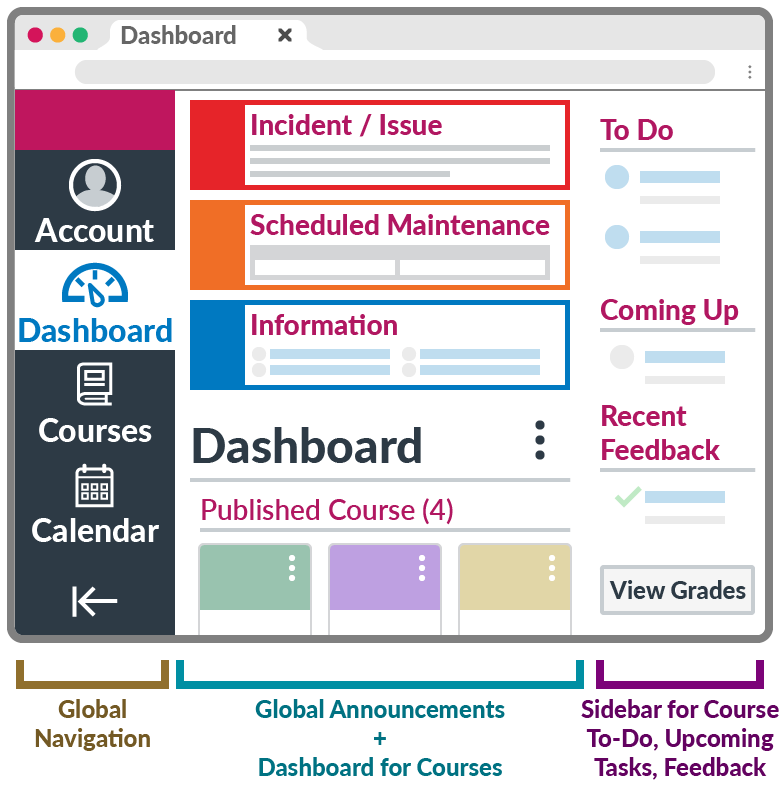
The infographic (from left to right) above and the details below present three components, with their core features.
Global Navigation
Account- Notifications
View or change your own notification settings
- Course Calendars
It is related to the online assessments / tasks in Canvas courses, NOT your Weekly Schedule in AIMS.
- To expand or collapse the Global Navigation menu, click the (Arrow) icon.
Global Announcements + Dashboard for Courses
Global Announcements- Error (Red)
Incident or critical issue (i.e., Turnitin Degraded Performance) - Warning (Orange)
Scheduled maintenance or important notice - Information (Blue)
Information for students and teachers, resolved issue
- Card View (default)
- List View (right sidebar disabled)
- Recent Activity
Sidebar for Course To-Do, Upcoming Tasks, Feedback
When set to "Card View" or "Recent Activity" View, the Dashboard also includes a sidebar.
To Do- Assignments and quizzes with due dates
- Course announcements and discussions
- Upcoming calendar events and tasks (i.e., assignments)
- Assignments with feedback from your teachers during the recent weeks
Access a Published Course
In "Global Navigation", click the Courses link. The "Courses" tray menu displays a list of Published Courses that you enroll in. To view all your courses, please click the All Courses link. The "All Courses" page lists all courses.
- Published: Yes
You can click the link to one of the published courses. - Published: No
Only the course teachers have the authority to publish their Canvas courses. If you have any questions about when the course content will be available, please reach out to your course teachers for clarification.
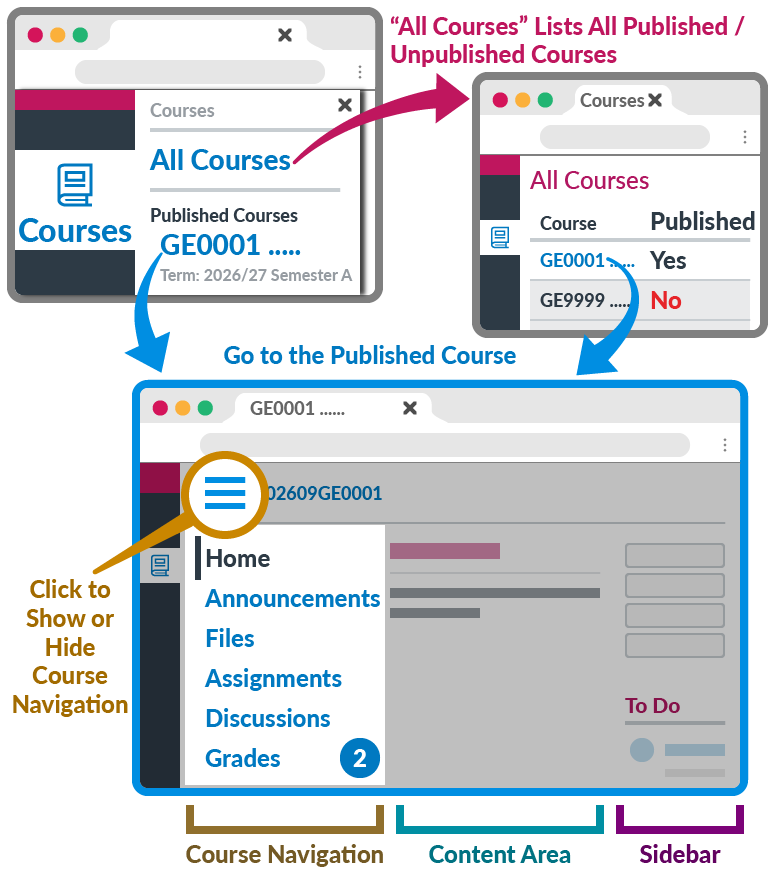
The infographic (from left to right) above and the details below present three components in a Canvas course.
Course Navigation
Teachers can customize what links are shown in a course, so if you do not see links that may display in other courses, your teachers may hide those links from your view.
You may also see the number of grade updates in (Blue Circle).
If you cannot locate the course navigation, please click the (Menu) icon in the top left.
Content Area
The content can be a list of files / content items, a page, syllabus, announcements, discussions, assignments or quizzes.
The content can also show the "Course Activity" Stream, which is a list of all recent activity in the course. Your "Home" page may also display recent announcements at the top, depending on your teachers' settings.
Sidebar
The sidebar functions the same as the "Dashboard" sidebar but only shows content for the specific course and includes additional options.
At the top of the sidebar, buttons can be "Course Analytics", "View Course Calendar", or "View Course Notifications".