

How to Create Turnitin Assignment using LTI 1.3 in Canvas Course
(Turnitin LTI 1.3)
- last updated on 8 July 2026
Turnitin LTI 1.3, also known as LTI Advantage, includes new features and improved security protocols. In addition to the previous features in "External Tool" (LTI 1.1), it allows teachers/TAs to submit assignments on behalf of students, even for those who have never submitted work before.
Classic Standard and New Standard versions are enabled for the Turnitin LTI 1.3 in our university's Canvas service.
- Create a Turnitin Assignment (Classic Standard)
- Create a Turnitin Assignment (New Standard)
- Grade Student Submissions in a Turnitin Assignment
- Further Instructions
- Submitting on behalf of students (Classic Standard and New Standard)
- Giving a student extra hours or days to submit (New Standard Only)
- Comparison between Classic Standard and New Standard Assignments
Create a Turnitin Assignment (Classic Standard)
To create a Turnitin Classic Standard Assignment in your Canvas course,
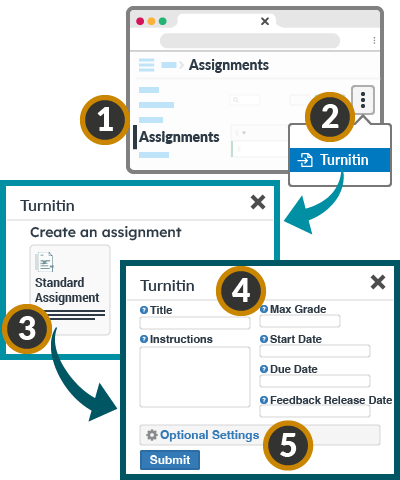
- Visit the Assignments page
- Click the Assignments Options (3-dot) icon, then select Turnitin
- On the pop-up, click on the Standard Assignment (Classic) block
- Fill in the assignment details
- Title - Assignment name
- Instructions Optional
- Max Grade - Maximum number of scores
- Start Date / Due Date (and times)
- Feedback Release Date - Time that any grading is visible to students in the Turnitin Assignment Inbox/Dashboard
( You may also post grades of the assignment in the gradebook manually after the Feedback Release Date)
- Further update Optional Settings (Turnitin Guide) relating to
- Submit papers to standard paper repository or do not store the submitted papers
- Allow late submissions
- Allow students to resubmit it under "Generate Similarity Reports for student submission"
- Allow students to view Similarity Reports
Create a Turnitin Assignment (New Standard)
If you want to try the New Feedback Studio or the enhanced interface for anonymous grading, you can create a Turnitin Standard Assignment (New Version) in your Canvas course.
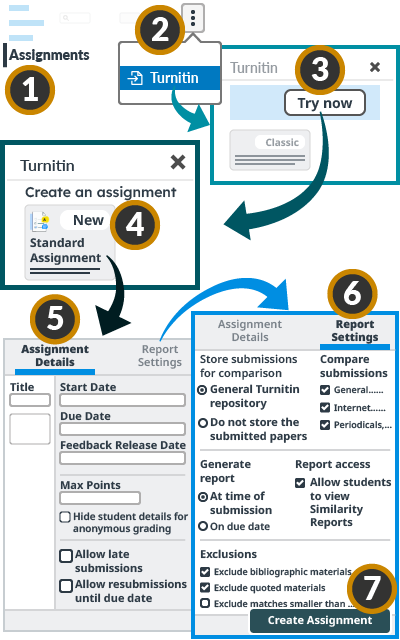
- Visit the Assignments page
- Click the Assignments Options (3-dot) icon, then select Turnitin
- On the pop-up, click on the Try Now button
- On the pop-up, click on the Standard Assignment (New) block
- Under the Assignment Details tab,
- Title - Assignment name
- Start Date / Due Date (and times)
- Feedback Release Date - Time that any grading is visible to students in the Turnitin Assignment Inbox/Dashboard
( You may also post grades of the assignment in the gradebook manually after the Feedback Release Date) - Max Points - Maximum number of scores
- Hide student details for anonymous Optional
( If the student names should be hidden during reviewing the submissions, please enable this anonymous grading option) - Further optional settings:
- Allow late submissions
- Allow resubmissions until due date
- Click and visit the Report Settings tab,
- Store submissions for comparison, select one option
- General Turnitin repository
- Do not store the submitted papers
- Compare submissions
- Generate report
- Report access
(Allow students to view similarity reports?) - Exclusions
- Store submissions for comparison, select one option
- Then click the Create Assignment button
Grade Student Submissions in a Turnitin Assignment
Please use Turnitin Feedback Studio to grade student submissions in a Turnitin LTI 1.3 assignment.
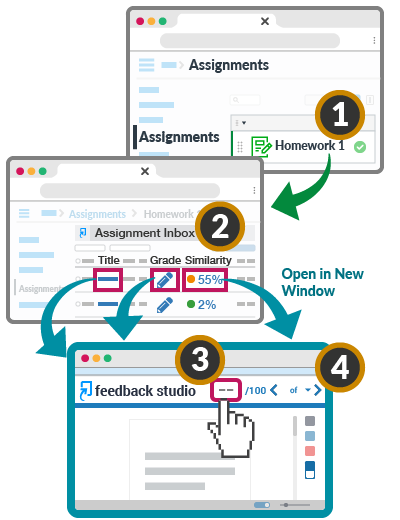
- Click the Turnitin assignment on the Assignments page of the Canvas course
- Click the Title, Grade () or Similarity on a student submission
- On the "Feedback Studio" window, read the student submission and then input the score at the top
- Navigate to the next student submission or close the window
Turnitin LTI 1.3 assignment submissions cannot be opened in the Canvas SpeedGrader. Please view the submissions via the Turnitin "Assignment Inbox" or "Submission List" in the assignment.
When you input a grade in the Turnitin Feedback Studio, it will automatically update in the Canvas gradebook. However, grades entered in the Canvas gradebook will not sync back to the Turnitin Feedback Studio. Therefore, for assignments using Turnitin LTI, please enter grades in the Turnitin Feedback Studio instead of the Canvas "Grades" and SpeedGrader.
Further Instructions
- Turnitin LTI 1.3 Guides:
- Classic Standard Assignment
- New Standard Assignment
- Comparison between Classic Standard and New Standard Assignments
- Various Types of Turnitin Assignments in Canvas
- Turnitin Further Guides:
- File requirements
- Downloading a Similarity Report as a student
- Differences between Various Types of Turnitin Assignments in Canvas: