

Teacher Guide for Canvas Groups
- last updated on 14 September 2026
Canvas Groups are used as a collaborative tool where a minimum of two students can work together on group projects and assignments.
- Start to Use "Groups"
- Create a Group Set with Groups
- Create a Group Set with Self Sign-Up Groups
- Manage Groups and Visit a Group in a Group Set
- Create a Group Assignment
- Let Students Create Their Own Groups
Start to Use "Groups"
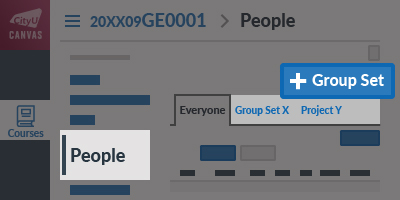
In the People page,
- To create a group set, click the button.
- After a group set is created, it appears as a linked tab next to the "Everyone" tab.
Canvas Basic Guide:
What are Groups?
Canvas Instructor Guide:
How do I view all groups in a course as an instructor?
Create a Group Set with Groups
After clicking the button, the "Create Group Set" pop-up is opened.
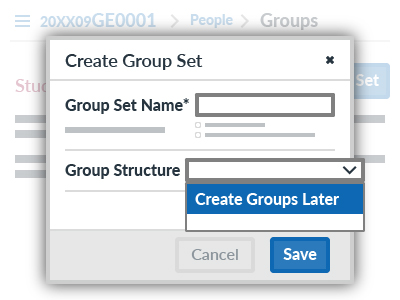
Input the Group Set Name and select the Create Groups Later option from the "Group Structure" drop-down menu. Then click the button.
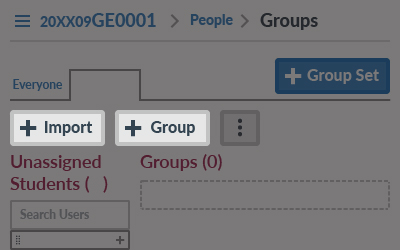
In the group set, you can create groups after clicking the or button.
Individually and Assign Students to Groups Manually
If the class size is small and a few groups are required, you can create the groups individually.
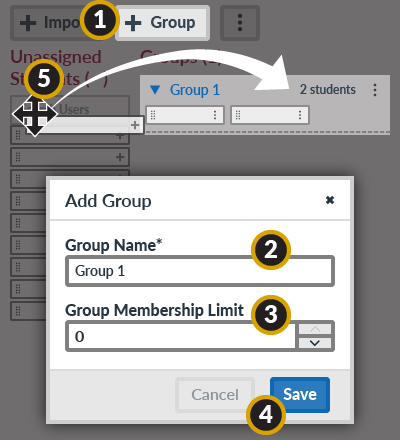
- Click the button.
- On the "Add Group" pop-up, input the Group Name.
- If the group is limited to a specific size, enter the maximum number of group members in the Group Membership Limit.
- Click the button.
- In the "Unassigned Students" section, find the student you want to add to a group. Click the student's name and drag it to the created group.
Canvas Instructor Guide:
How do I manually create groups in a group set?
How do I manually assign students to groups?
Canvas Course Roaster CSV File with Group Membership
If you have a list of group memberships associated with each student’s CityUHK EID or Student ID, you can import the CSV file after editing the downloaded course roster in a spreadsheet application (i.e., Microsoft Excel).
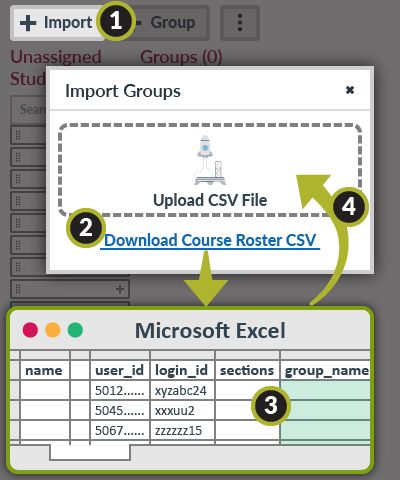
- Click the button.
- On the "Import Groups" pop-up, click the Download Course Roster CSV file.
- Please download two copies, and one is for backup.
- Open the downloaded CSV file in Microsoft Excel or another spreadsheet application. The "user_id" (Student ID) and "login_id" (CityUHK EID) columns will appear in the course roster. Please enter the group names in the "group_name" column.
- After editing and saving the CSV file, you can upload it by clicking and dragging the file or clicking the "Upload CSV File" area to browse it on your computer.
Canvas Instructor Guide:
How do I import groups in a group set?
Create a Group Set with Self Sign-Up Groups
Self sign-up groups allow your students to choose the group they want to be in as part of a group set.
After clicking the button, the "Create Group Set" popup is opened.
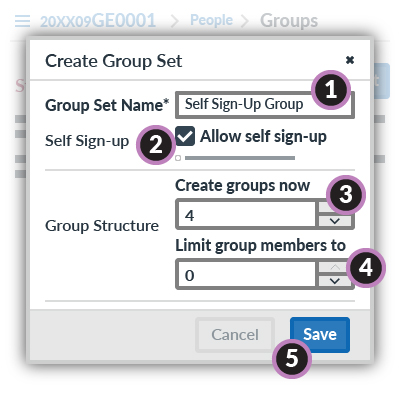
- Input the Group Set Name.
- Enable the Allow Self Sign-Up option.
- Please DO NOT enable the Require group members to be in the same section option, as students may be included in multiple overlapping sections in your Canvas course.
- For "Group Structure", enter the number of groups under Create groups now. If you create groups later, leave the field as "0".
- If the group is limited to a specific size, enter the maximum number of group members in the Limit group members to.
- Click the button.
Canvas Instructor Guide:
How do I create self sign-up groups in a group set?
Manage Groups and Visit a Group in a Group Set
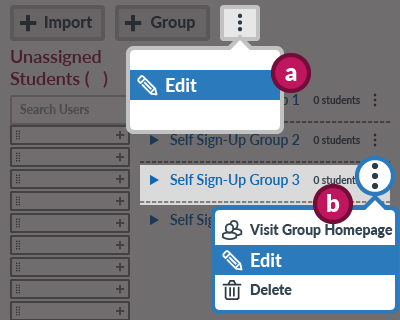
- If you want to rename the group set or change the settings (e.g., enable the self sign-up option),
- Click the (Options) button next to the "+ Group" button.
- On the menu, click the Edit item to open the "Edit Group Set" pop-up.
- If you want to rename one of the groups or visit the group homepage,
- Click the (Options) icon next to the group name.
- On the menu, click the Edit item to open the "Edit Group" pop-up or Visit Group Homepage.
Canvas Instructor Guide:
How do I edit or delete a group set in a course?
How do I view content and student activity within a group as an instructor?
Create a Group Assignment
Before creating a group assignment, please note the following.
- ALL students must be assigned to the groups in the selected group set.
- Group members should not be changed after submission.
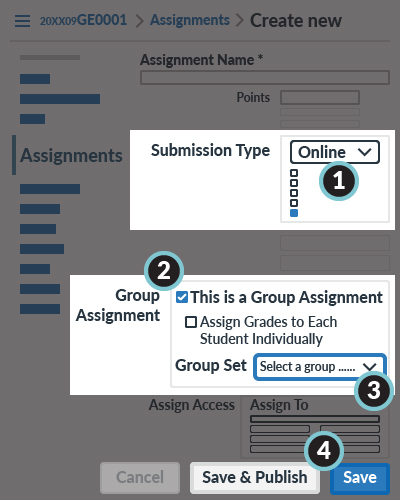
In the "Assignments" page, click the button. Please read the section below in the Getting Started Guide for Teachers.
For creating a group assignment,
- In the "Submission Type", you must select the Online option. Otherwise, the "Group Assignment" settings would not appear.
- In the "Group Assignment" part, please enable This is a Group Assignment option.
- Select the Group Set from the pull-down menu.
- After completing all other settings, click the button if it is ready for student submissions. Otherwise, click the button to save the assignment settings as a draft.
Canvas Instructor Guide:
How do I assign an assignment to a course group?
Let Students Create Their Own Groups
You can allow students to create their own student groups in your Canvas course. However, please note the following.
- Groups created by students cannot be used to assign group assignments.
- Students can invite specific classmates when creating groups, but they cannot invite others again after the groups are formed.
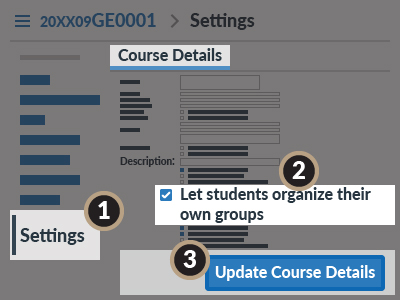
To allow students to create their "Student Groups",
- Visit the Settings page.
- Under the Course Details tab, enable the Let students organize their own groups option.
- Click the button.
Canvas Instructor Guide:
How do I allow students to create their own student groups?