Publish a Canvas Course
-
last updated on 2 August 2024
Has my Canvas course been published???
On the course home page, Course Status is located on right panel.
| If the status Unpublished is shown, that means the Canvas course has NOT been published yet. |
 |
| If the status Published is shown, that means the Canvas course has been published and students can access it. |
 |
Method 1: Publish course on "Home"
-
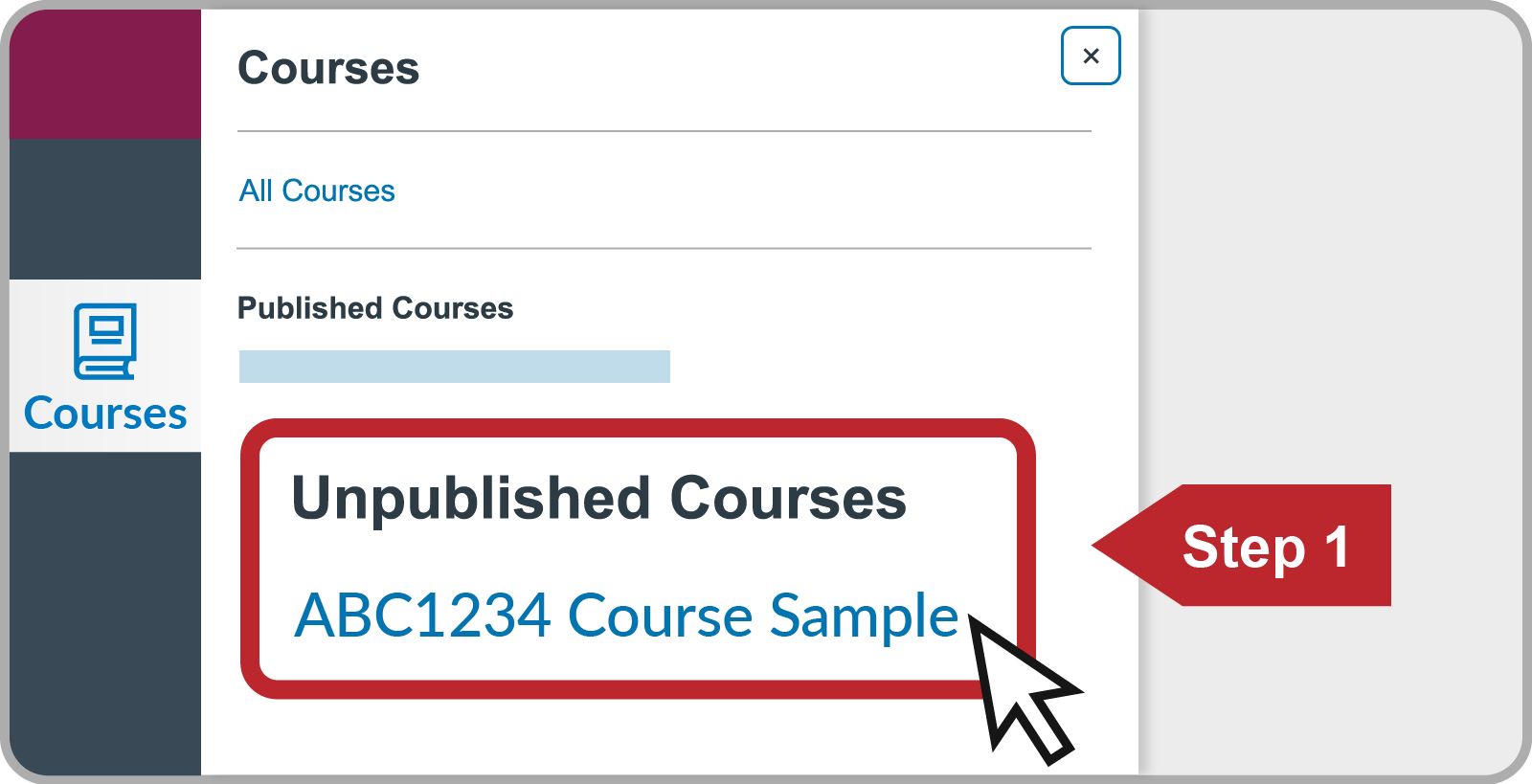
Click the Courses icon from left panel, then click the name of the course under "Unpublished Courses";
-
Under "Course Status" on the course home page, click the dropdown menu then select Publish;
-
If the popup "Choose Course Home Page" is shown, choose the preferred option from the list and then click the Choose and Publish button;
-
The Canvas course has been published successfully and then your students can access it.
Method 2: Publish course on "Settings"
-
Click the Courses icon from left panel, then click the name of the course under "Unpublished Courses";
-
Go to Settings, click the dropdown menu then select Publish;
-
The Canvas course has been published successfully and then your students can access it.