

Teacher Guide for Canvas New Quizzes
- last updated on 25 August 2026
Before Starting Quiz
- Create and Schedule a Quiz
- Add Instruction and Questions to Unpublished Quiz
- Modify Quiz Settings
- Preview and Publish Quiz
- (Optional) Give a Student Extra Time in the Quiz with Time Limit
- (Optional) Require Students Using Respondus LockDown Browser
During the Quiz
After the Quiz
More Guides
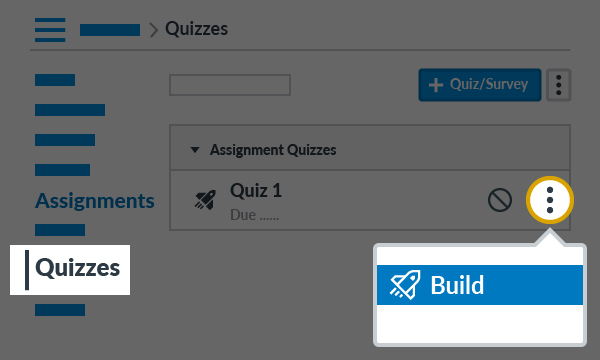
Before Starting Quiz
Step 1 - Create and Schedule a Quiz
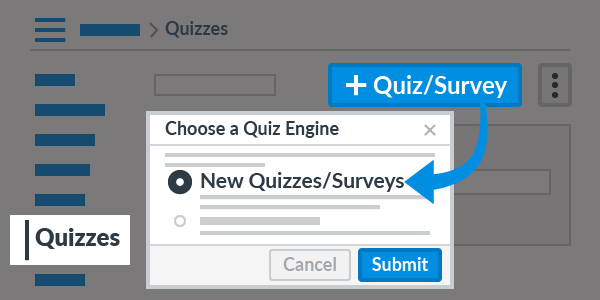
In the Quizzes page, click the button.
On the pop-up "Choose a Quiz Engine", select the New Quizzes/Surveys option and then click the button.
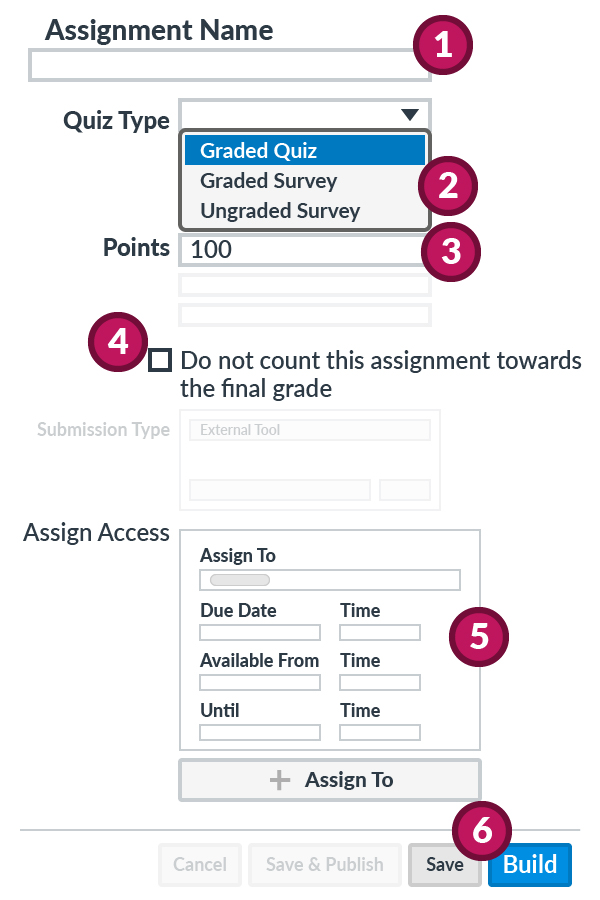
Before building a quiz,
- Input the quiz name in the Assignment Name.
- Select the Graded Quiz option in the "Quiz Type".
- Enter the Points (i.e., 100).
- If it is a practice quiz, you may enable the Do not count this assignment towards the final grade option.
- In the "Assign To ......" block, set the fields for the quiz available period.
- Due Date (for marking late submissions)
- Available From / Until (allowed submission period)
- Then click the button to start adding questions, or click the button.
Step 2 - Add Instruction and Questions to Unpublished Quiz
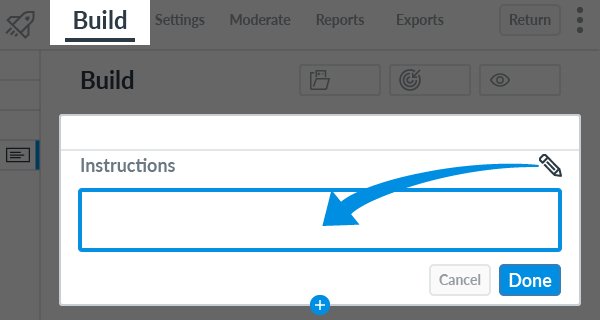
After clicking the button in the previous step (or "Build" from the quiz options), under the Build tab, click the (Edit) icon on the Instructions to add the quiz instruction.
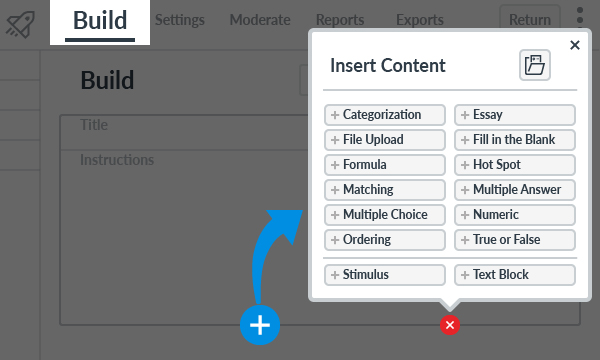
Click the button, you can Select Question Type in the "Insert Content" pop-up menu.
Advanced Guide: Randomize Quiz Questions from an Item Bank
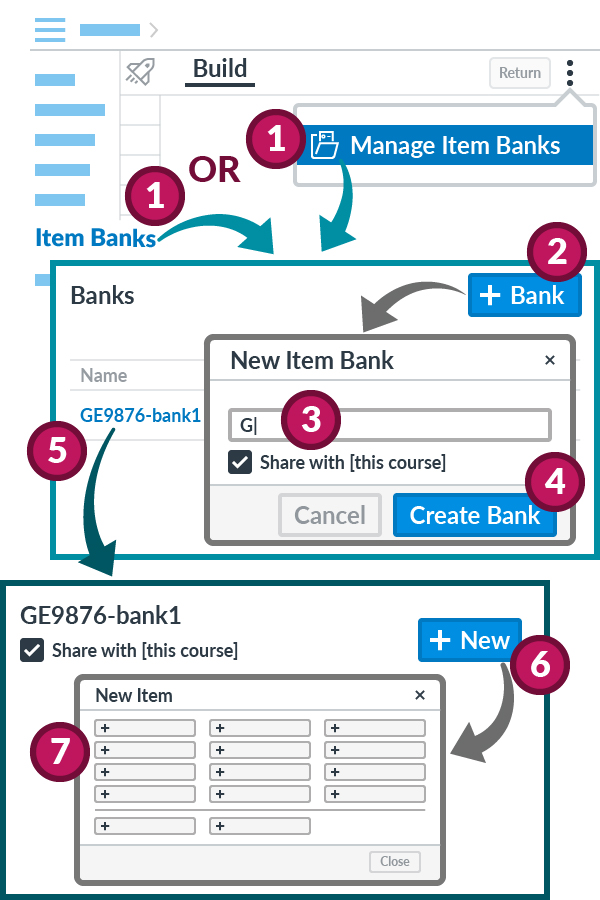
If the quiz questions need to be randomized,
- Click the (Options) icon to expand the menu and click Manage Item Blanks, or click Item Banks from the course navigation.
- Click the button.
- On the "New Item Bank" pop-up, input the name of the item bank.
- Please enable the Share with [this course] option.
- Click the button.
- Click on the new item bank.
- In the new item bank, click the button.
- Select Question Type to add an question.
Canvas Instructor Guide:
How do I create an item bank in New Quizzes?
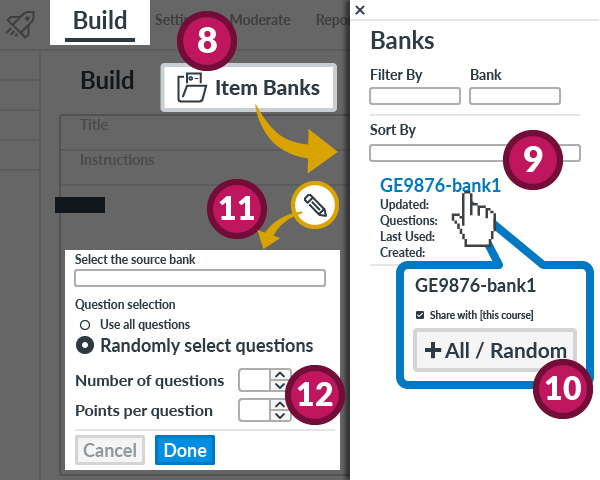
- Click the button (or "Build" from the quiz options). Under the Build tab, click the button.
- On the right tray, click on the item bank name.
- On this item bank screen, click the button.
- On the inserted question block, click the (Edit) icon.
- Select Randomly Select Questions, then input the Number of Questions (How many questions should be randomly selected?) and Points Per Question.
Canvas Instructor Guide:
How do I add all items or a random set from an item bank to a quiz in New Quizzes?
Step 3 - Modify Quiz Settings
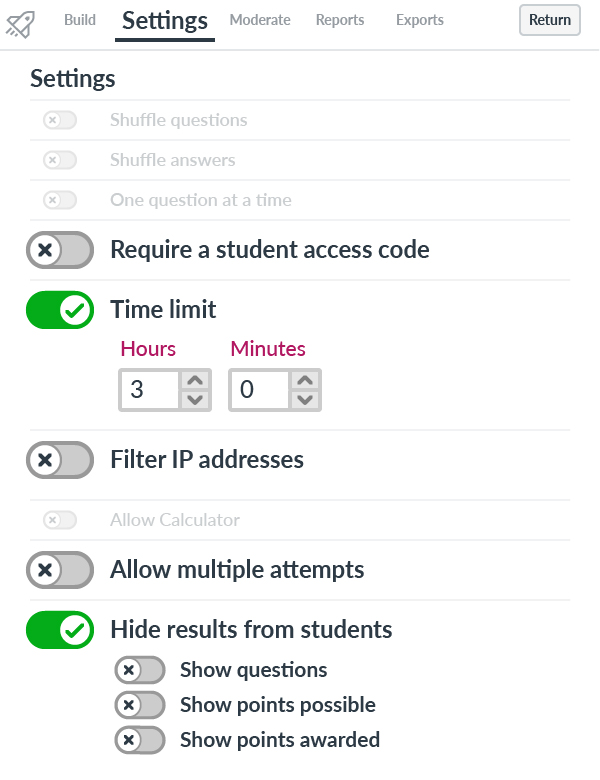
In the "New Quizzes" interface (or "Build" from the quiz options), visit the Settings tab.
- (Optional) Click to switch on Require a Student Access Code - require students to enter an access code to take the quiz.
- Click to switch on the Time Limit option, input the time limit using the Hours and Minutes fields.
- If the venue is one of CSC Teaching Studios, you can switch on Filter IP Addresses - require students to take the quiz from computers with fixed IP addresses.
(IP Address Ranges of Teaching Studios) - If the quiz is conducted for an examination, please DO NOT Allow Multiple Attempts.
- You may switch on the Hide Results from Students option if students should not view the correct answers.
Step 4 - Preview and Publish Quiz
We recommend you to preview and check the quiz before publishing it.
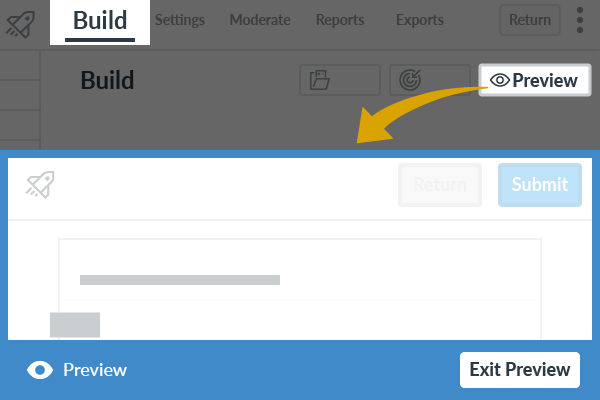
Please visit the "New Quizzes" interface for the quiz ("Build" from the quiz options). Under the "Build" tab, click the button to start the quiz as a test student.
To exit the test student view, click the button at the bottom of the screen.
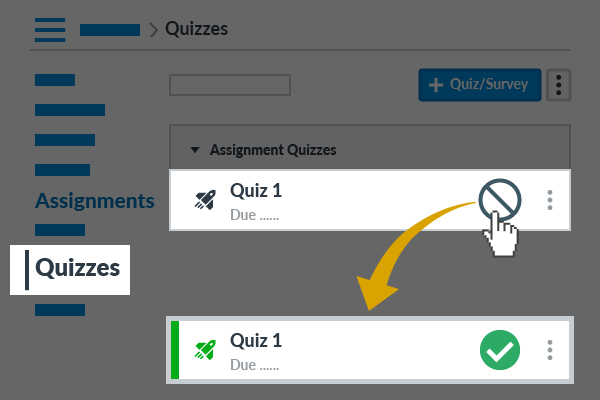
If the quiz is ready for your students after checking it, visit the Quizzes or Assignments page, click the (Unpublished) icon on the quiz item. Then the icon should be changed to the (Published) indicator.
(Optional) Give a Student Extra Time in the Quiz with Time Limit
To provide extra time for students with Special Educational Needs (SEN), please visit the "New Quizzes" interface for the quiz ("Build" from the quiz options).
- If the Time Limit is not set in the quiz settings, extra time cannot be granted to a student.
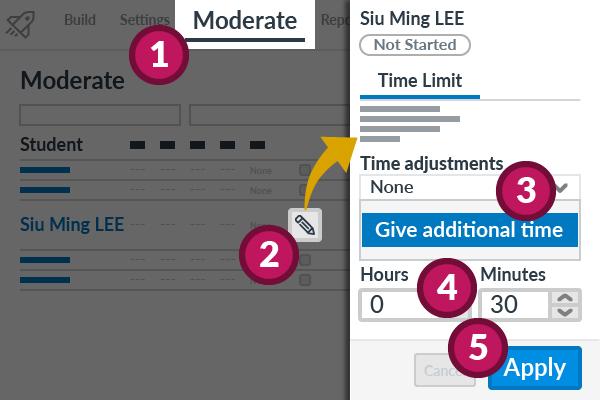
- Visit the Moderate page.
- Search and locate the student record, click the (Edit) button.
- On the right tray with the student name, change the option from "None" to Give Additional Time under "Time Adjustments".
- Input the extra time in minutes.
- Click the button
The extra time should be shown under "Accommodations" for the student.
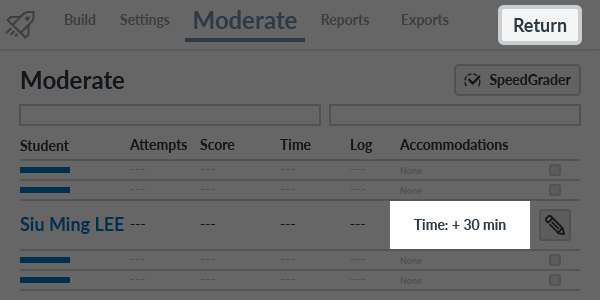
Repeat the steps above to provide extra time for another student.
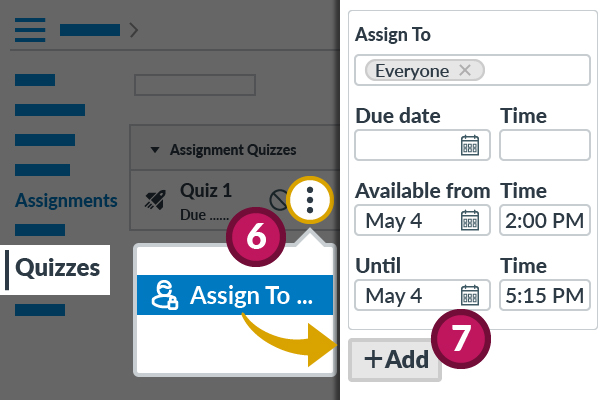
Visit the Quizzes or Assignments page.
- Click the (Options) icon to expand the menu and click Assign To ...
- On the right tray, click the button.
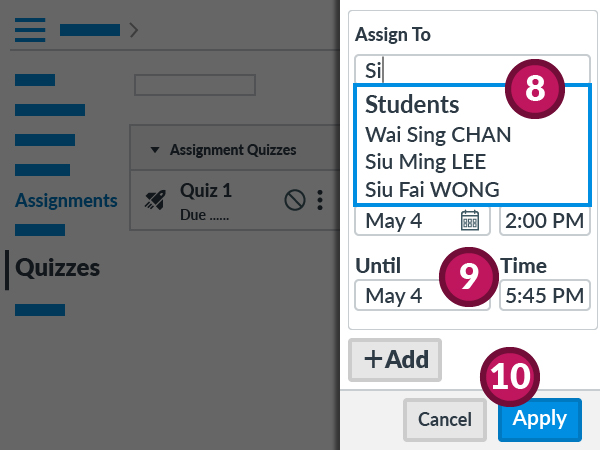
- Input the first or family name of the student, select the right name.
- Set the quiz available period longer.
- Click the button after adding extra "Assign To".
During the Quiz
Monitor Running Quiz with Time Limit
Please visit the "New Quizzes" interface for the quiz ("Build" from the quiz options). Then click the Moderate tab to monitor the running quiz with time limit.
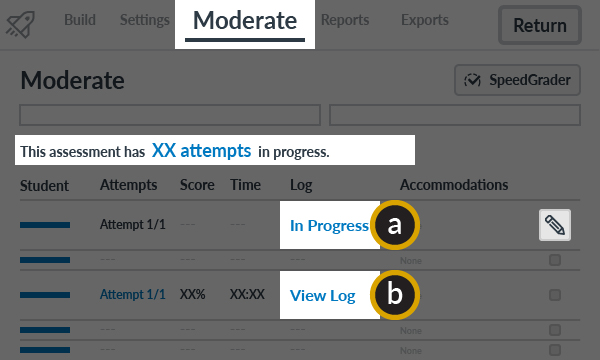
- When the student is attempting the quiz, In Progress will be shown.
- When the quiz has been submitted or time has expired, View Log will be displayed.
You may extend a student's current attempt by clicking the (Edit) button. To extend all "In Progress" attempts, click the [number] attempts link from the sentence displaying the number of in-progress attempts.
Canvas Instructor Guide:
How do I moderate a student's quiz attempt in New Quizzes?
(Manually Submit In-Progress Attempts)
- If the Time Limit is not set in the quiz settings, the student's current attempt cannot be extended.
After the Quiz
View Quiz Submissions
After students submit the quiz, you can view their submissions using the methods listed below.
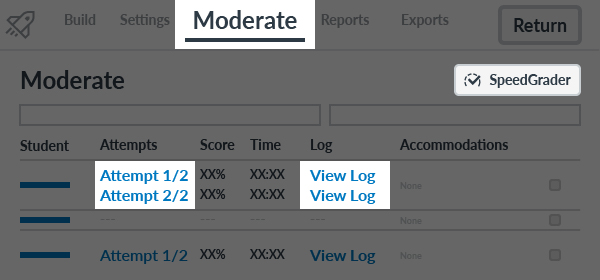
In the "New Quizzes" interface ("Build" from the quiz options), visit the Moderate tab.
- You can view the student submissions after clicking Attempt [number]......
Canvas Instructor Guide: How do I view student quiz results in New Quizzes? - You can also view the action log about the student's quiz attempt after clicking View Log.
Canvas Instructor Guide: How do I use the Moderate page in New Quizzes? (View Log)
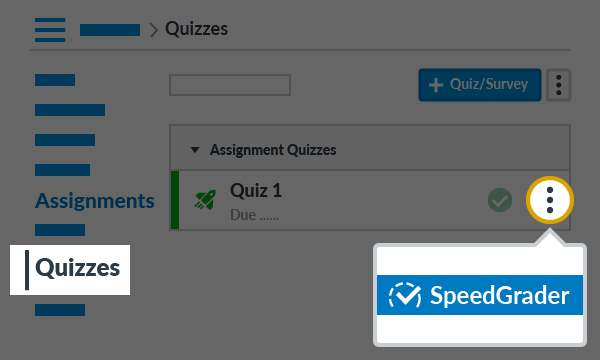
To grade the student submissions, you can click the button to open it under the Moderate tab of the "New Quizzes" interface.
In the Quizzes or Assignments page, you can also open the SpeedGrader after clicking the (Options) icon on the quiz item.