

Getting Started Guide for Teachers Using Canvas
- last updated on 15 September 2026



More Guides:


Navigate Your Courses in Canvas
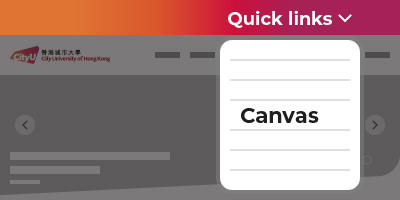
Visit the CityUHK website (www.cityu.edu.hk). Click on the Quick Links at the top, then click the Canvas item on the popup menu.
You can also access the CityUHK Canvas service directly via the link below.
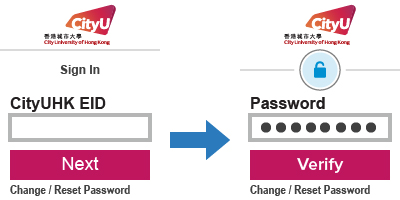
Input your CityUHK EID and click the "Next" button.
On the next screen, input the password and click the "Verify" button.
- After "Verify", you may be required to proceed the Multi-Factor Authentication (MFA). Please contact the IT Service Desk for any questions about MFA.
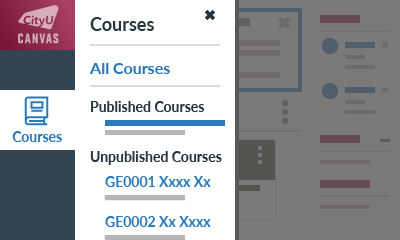
After landing the Canvas dashboard, click the Courses icon on the left menu. Links to your Canvas courses would be listed.
- If not all Canvas course links are listed, please click the All Courses link to view them.
Canvas Basics Guide:
How do I view all my Canvas courses?
Upload Files to Your Course
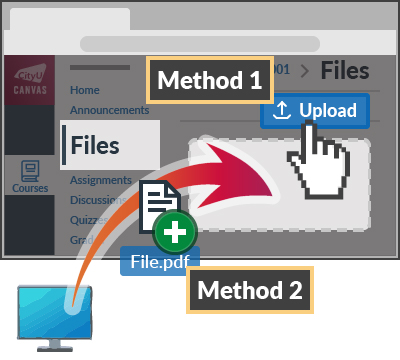
In the Files page,
Method 1:
Click the button, select the file(s) you want to upload.
Method 2:
Drag and drop the file(s) from a file window on your computer into the "Files" area.
Canvas Basics Guide:
How do I upload a file in Files?
How do I use Files?
Publish Your Course to Students
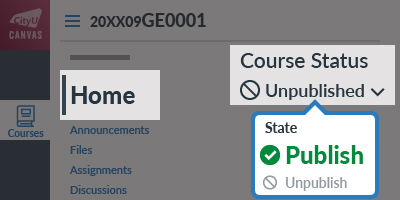
Visit the "Home" (or "Settings") page.
Under "Course Status" on the right side, click the dropdown menu, then select Publish.
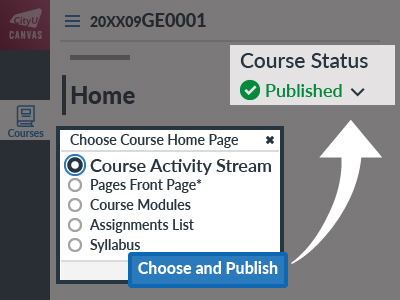
If the popup "Choose Course Home Page" is shown, choose the preferred option from the list and then click the button.
Choose the "Course Activity Stream" if you have no preferred option.
Then the Canvas course has been published successfully and then your students can access it.
Our Guide:
Publish a Canvas Course
Post an Announcement in Your Published Course
- If the Canvas course has not been published, the notification email will not be sent to students.
-
If you want to receive a notification email copy after posting the announcement, please turn on the Announcement Created By You option in your "Notifications".
Canvas Basics Guide: How do I manage my Canvas notification settings?
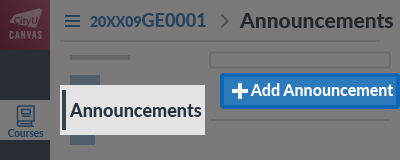
In the "Announcements" page, click the button.
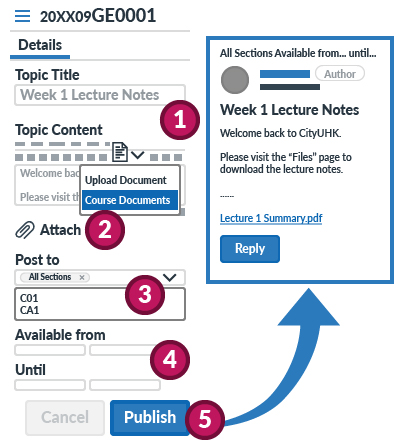
- Input the announcement title and body content under Topic Title and Topic Content respectively.
- You can Attach a file.
If you attach multiple files, please Upload Documents or add the Course Documents links through the Rich Content Editor. - By default, the announcement will be sent to all sections within your course. To select specific sections, click the Post To drop-down menu and select sections.
- By default, the announcement displays immediately after you publish it. However, you can set display dates between Available From and Until.
- Click the button to post it.
Canvas Instructor Guide:
How do I add an announcement in a course?
How do I use the Announcements Index Page?
- Students can turn off the announcement option in Canvas's notification preferences. If you are the course leader or teacher listed in the AIMS Class List (My Courses > University Courses), please send important messages to your students via the Class List's mail feature. For questions about the use of Class List, please contact Academic Regulations and Records Office (ARRO) or School of Graduate Studies (SGS).
Create an Assignment in Your Course
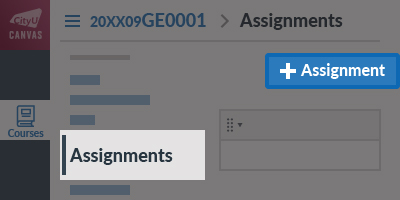
In the "Assignments" page, click the button.
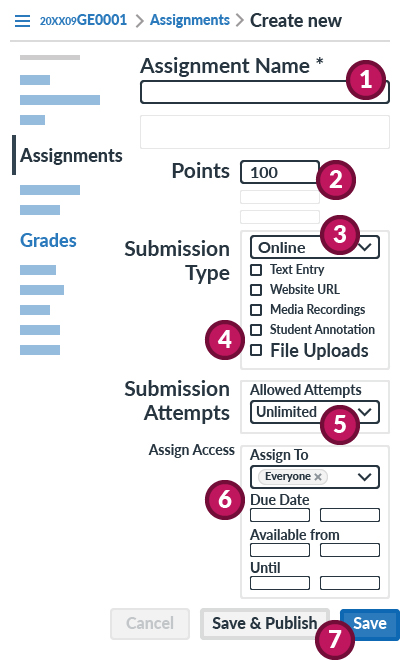
- Input the Assignment Name.
In the Rich Content Editor, input the assignment instruction and questions text if possible. - Enter the Points.
(Recommendation: 100) - In the "Submission Type" drop-down menu, select the Online option.
- Under "Online Entry Options", select the preferred submission option.
The File Uploads option is the most popular choice to collect student documents.
- To create a Turnitin assignment for checking plagiarism, please read our guide Various Types of Turnitin Assignments in Canvas.
- To create a video assignment, please read our guide Collect Video Assignments in Canvas Course.
- The Allowed Attempts setting is set to the "Unlimited" option by default.
To limit the number of attempts allowed to students, select the "Limited" option. Then select the number of attempts in the "Number of Attempts" field. - In the "Assign To: ......" block, set the fields for the assignment available period.
- Due Date (for marking late submissions)
- Available From / Until (allowed submission period)
- Click the button if it is ready for student submissions. Otherwise, click the button to save the assignment settings as a draft.
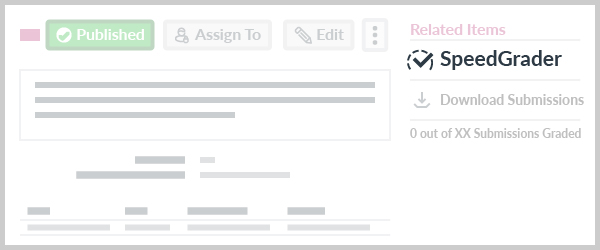
Once students have submitted the assignment, you can open the SpeedGrader to view and grade the student submissions.
Canvas Instructor Guide:
How do I get to SpeedGrader from an assignment, quiz, or graded discussion?
How do I use SpeedGrader?
- Student submissions of Turnitin assignments using LTI 1.3 cannot be opened in the SpeedGrader. Please view the submissions via the Turnitin "Assignment Inbox" or "Submission List" in the assignment.