Q1: What is the Passwordless Login Service for CityUHK?
A1: The Passwordless Login Service is a secure and convenient authentication method that allows CityUHK staff and students to access the CityUHK Single Sign-On (SSO) platform without entering a password. After entering a username (EID), users authenticate via the Okta Verify app installed on their mobile device. This login experience is consistent across all CityUHK applications.
Q2: Who is eligible and how can I enroll?
A2: All CityUHK staff members are eligible to enroll in the Passwordless Login Service. Enrollment is completed by submitting the designated service request form on the IT Service page. The service is optional.
Q3: Are there any hardware or software requirements?
A3: Yes. Users must have a mobile device that is supported by Okta Verify. Please refer to the official Okta Verify platform support list for compatibility.
Q4: Can I use Passwordless Login on public or shared computers?
A4: Yes. Passwordless Login works on new or public computers, including those in teaching studios. The login experience is the same as when using a personal device.
Q5: Can I use Passwordless Login while overseas?
A5: Yes. The service is accessible overseas, provided that your mobile device has network connectivity.
Q6: How do I opt out from the Passwordless Login Service?
A6: You can submit the Passwordless Login service request form. The change will take effect in 5 minutes, and your account will revert to password login mode.
Q7: What should I do if I forget my mobile phone?
A7: If you forget your mobile phone, you can use the Service Portal self-service function to temporarily disable your MFA for that day. Alternatively, you can contact the IT Service Desk for help. Your account will temporarily fall back to password login mode.
Q8: What should I do if I lost my mobile phone?
A8: To ensure the continuity for accessing the CityUHK IT services, you may request to temporarily disable the MFA by using the Service Portal self service function. When you acquire a new mobile phone, you can follow this guide to set up the MFA.
Q9: Is Passwordless Login secure?
A9: Yes. Okta Verify is protected by two-factors security features available on your mobile device, such as fingerprint or facial recognition.
Q10: When is a password still required?
A10: A password is still required when you log in to:
Q11: Can I log in if my password is forgotten or expired?
A11: Yes. You can continue to access systems even if your password is forgotten or has expired. As a best practice, you are advised to reset or change your expired password.
Q12: If I am a student, am I able to use Passwordless Login after I graduate?
A12: No, you cannot; this service is only accessible to current students.
Q13: Why do I see this error after submitting the Passwordless Opt-in Request?
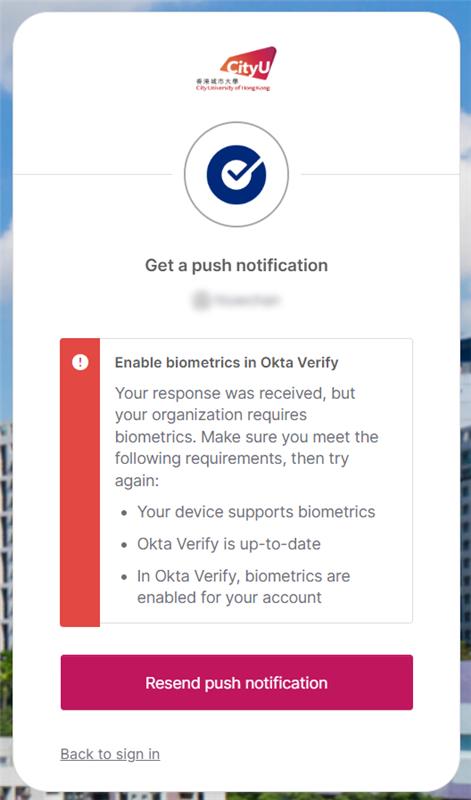
A13: This error shows because you haven't follow the setup requirements stated in the request form, you can go back to those steps and try again.
IT.ServiceDesk@cityu.edu.hk