Multi-Factor Authentication, or MFA, helps protect your CityUHK account. After you enter your CityUHK EID and password, MFA asks you to confirm your identity using your mobile phone.
CityUHK uses the Okta Verify app for MFA. When you sign in to a CityUHK IT service, Okta Verify sends a request to your phone. You can approve the request only if you are the person signing in.
All CityUHK staff and students are required to complete MFA as a security requirement.
The guide contains the following sections:
Before You Start
Step 1: Install Okta Verify
Step 2: Connect Okta Verify to Your CityUHK Account
Step 3: Use Okta Verify When Signing In
Frequently Asked Questions (FAQ)
On your mobile phone, open the Apple App Store or Google Play Store. Search for Okta Verify, then download and install the app.
If Okta Verify is not available from your phone’s app store, download and install the CityUHK-provided installation package from this link. If it still does not work, contact the IT Service Desk and provide your EID and phone model.
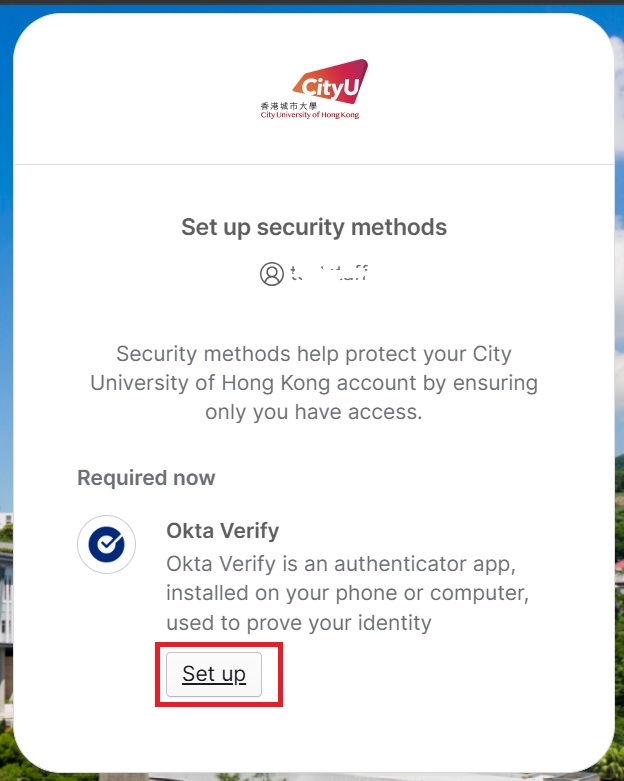
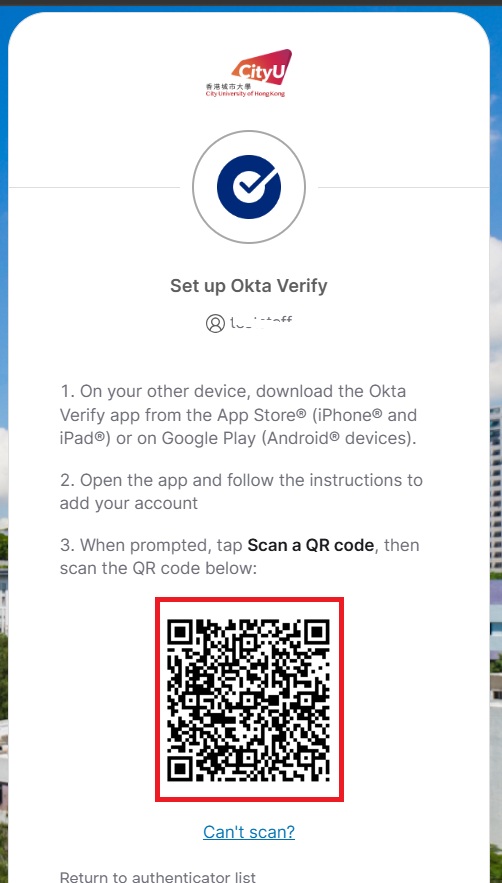
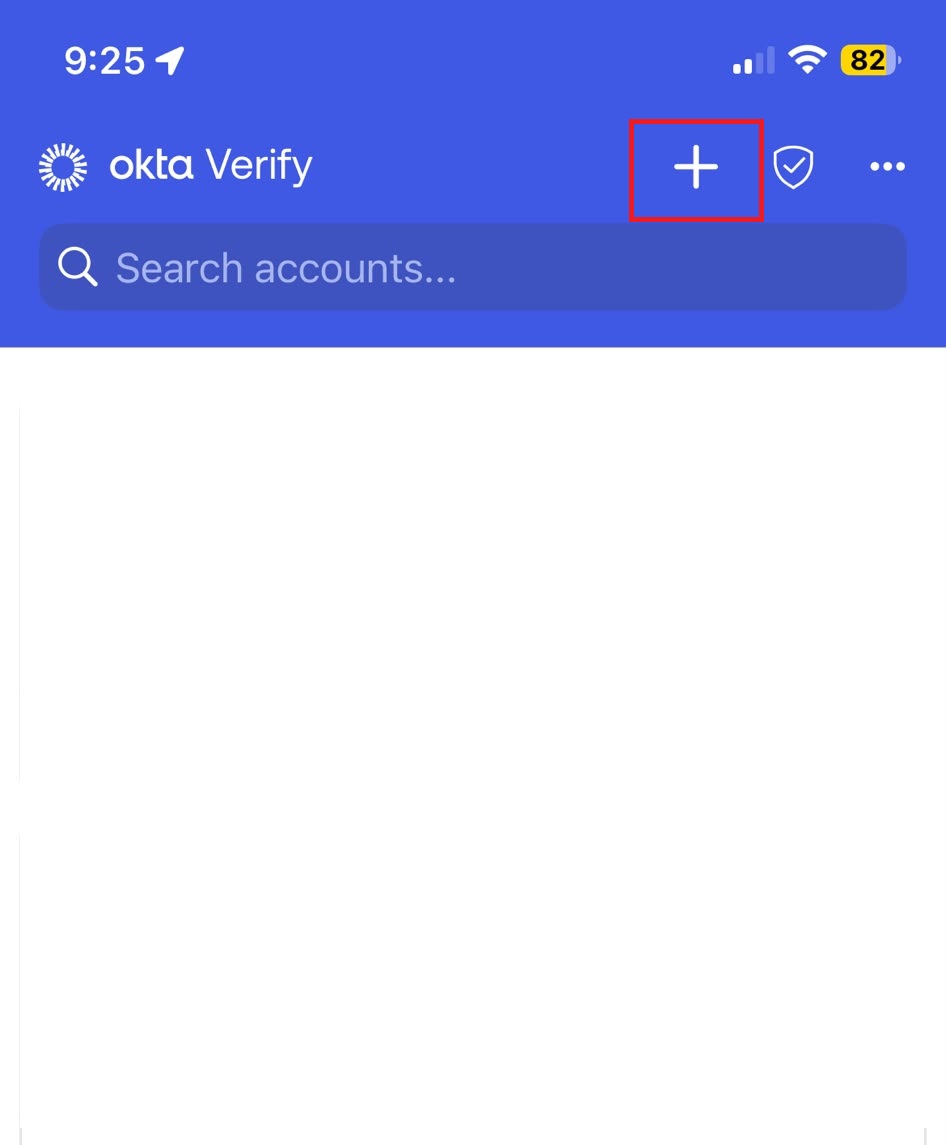
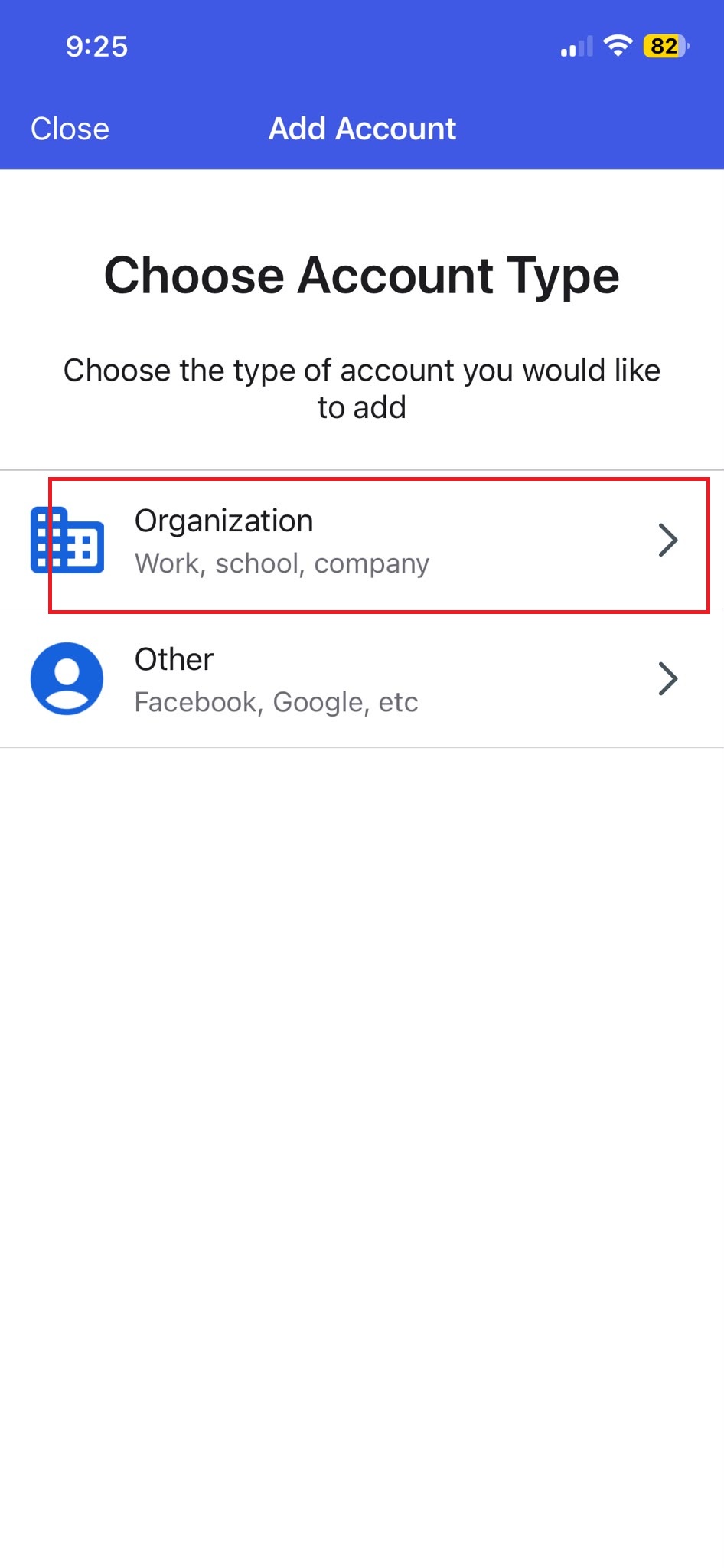
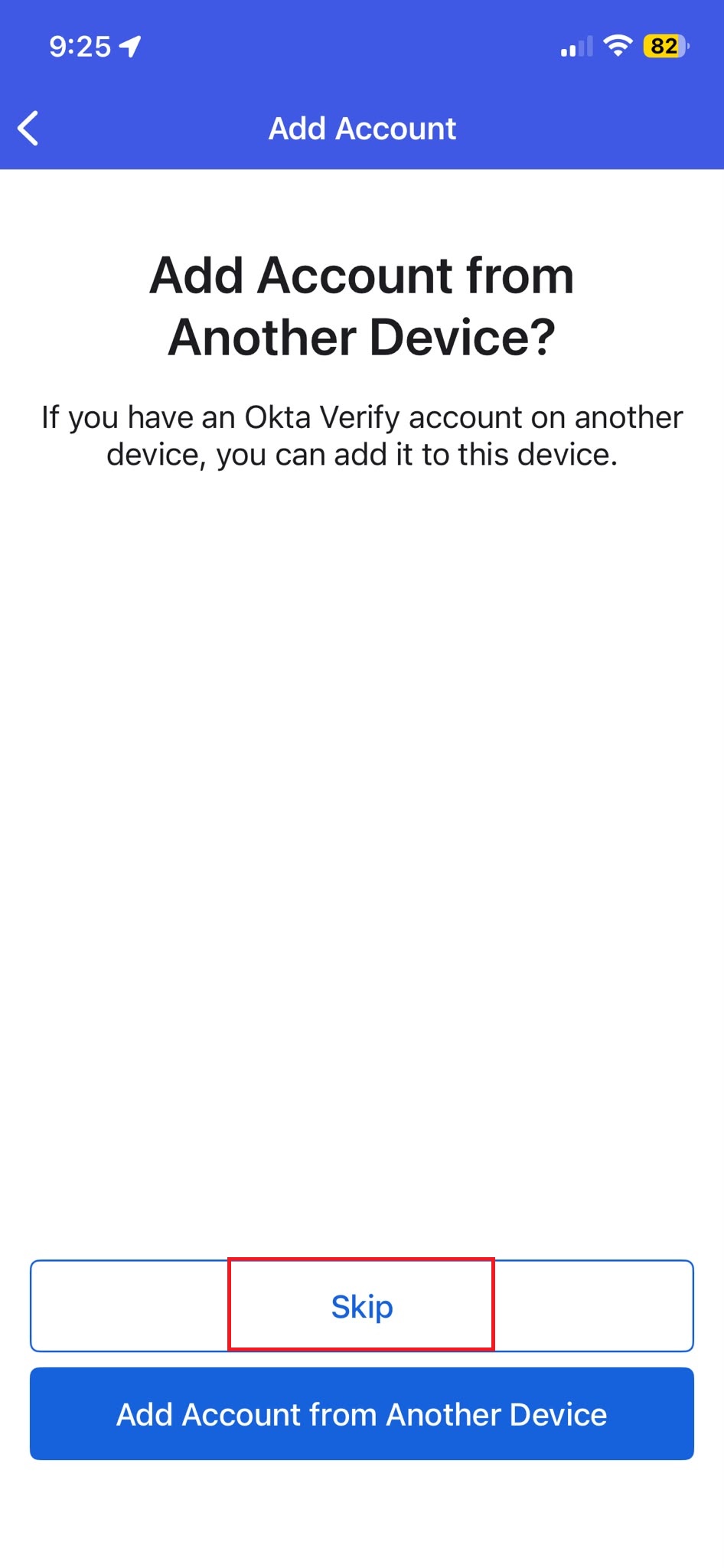
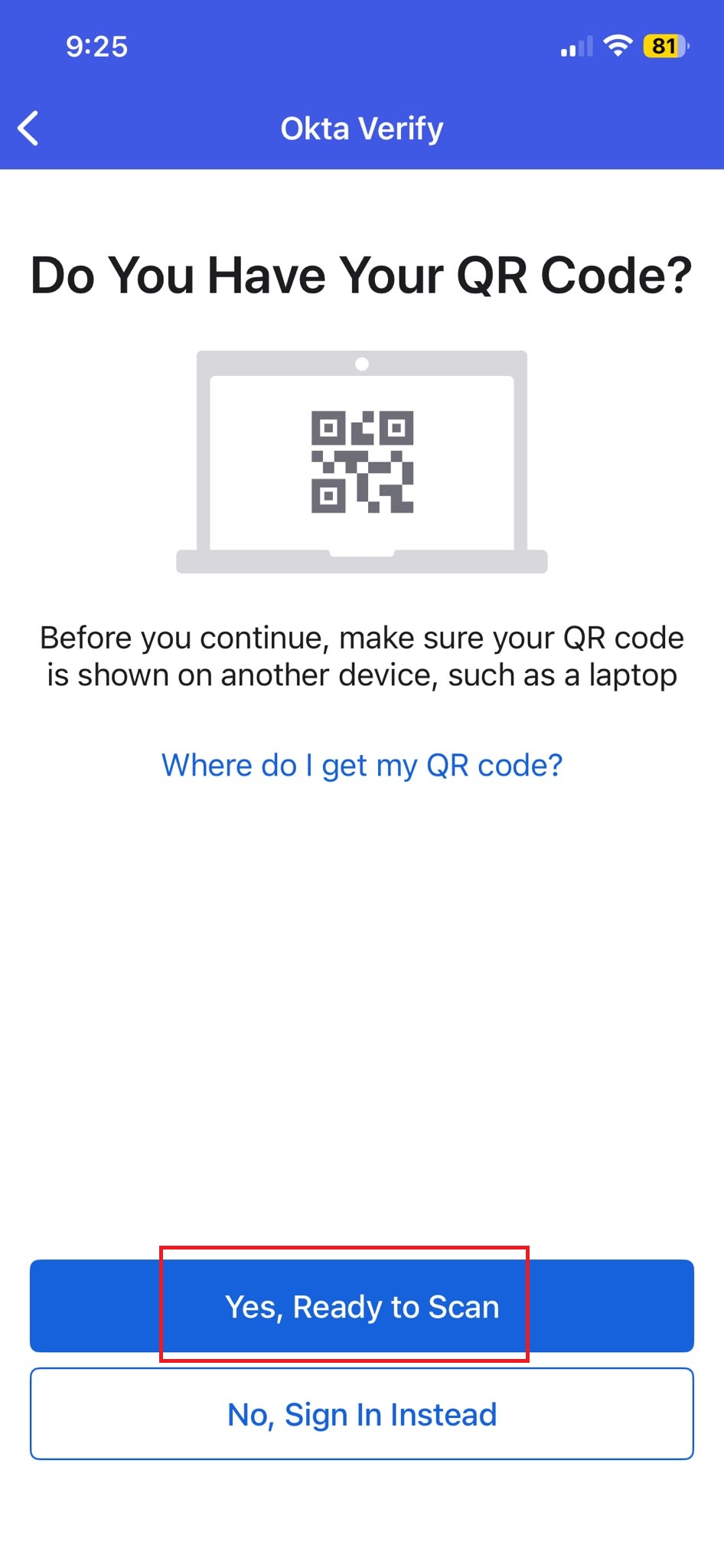
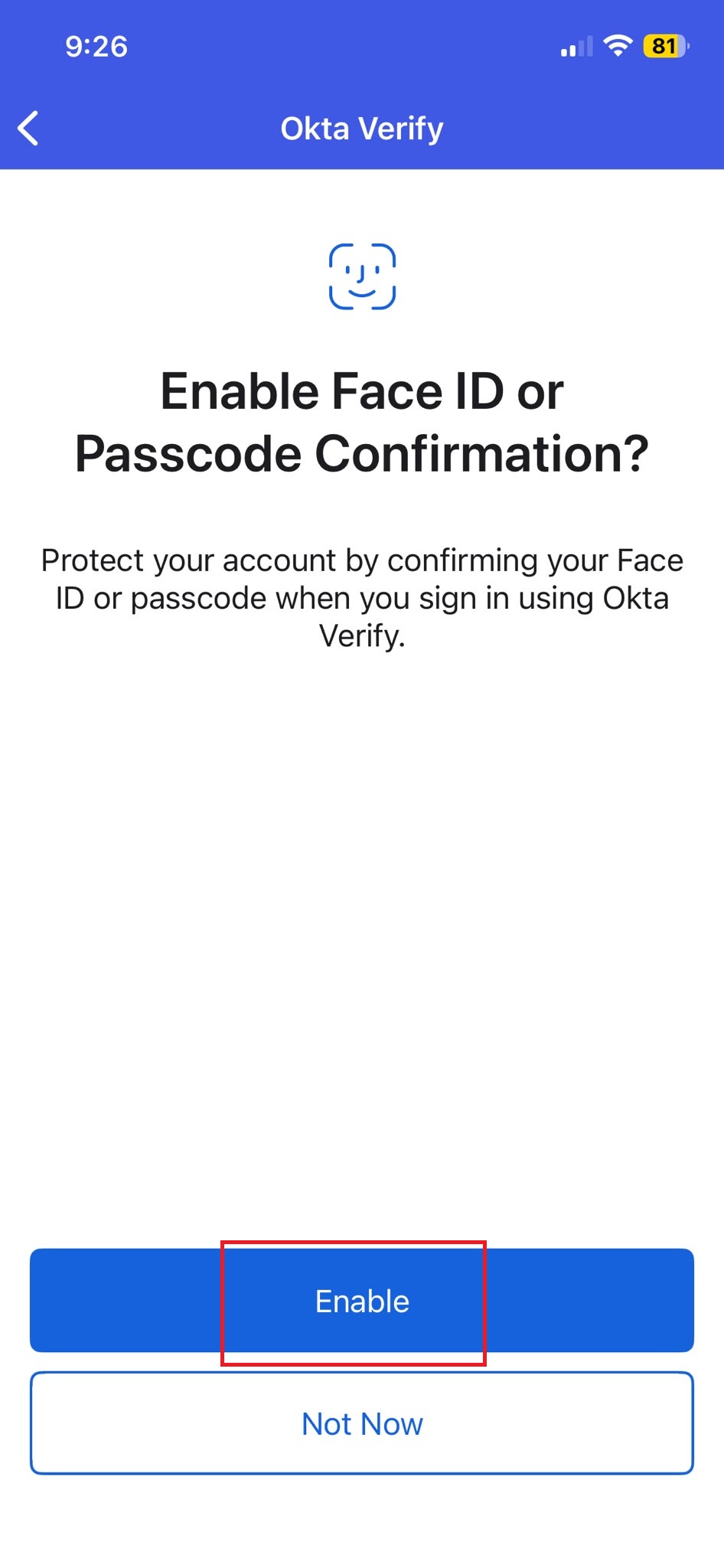
You need to use both your computer and your mobile phone during setup. The computer shows a QR code, and your phone scans the QR code using Okta Verify.
On your computer or tablet
On your mobile phone
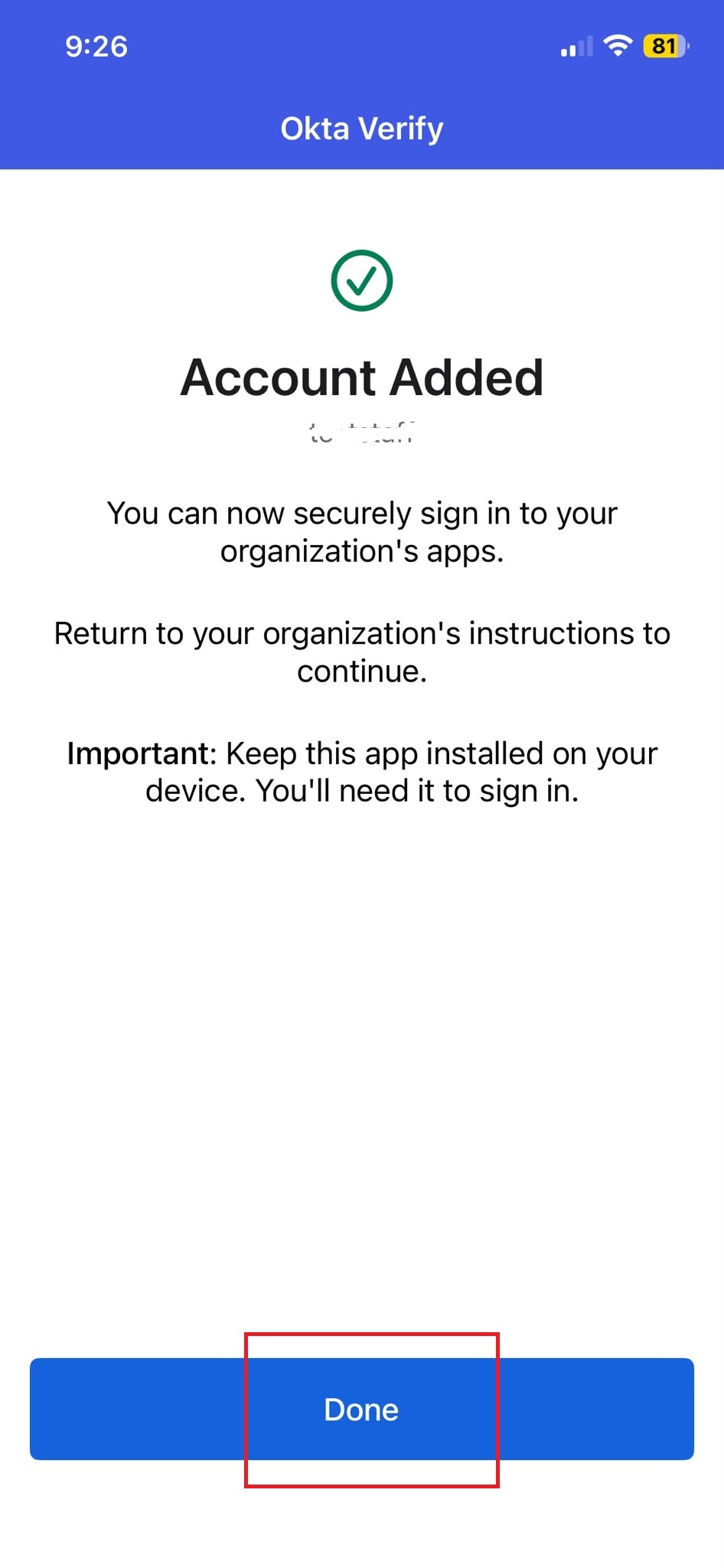
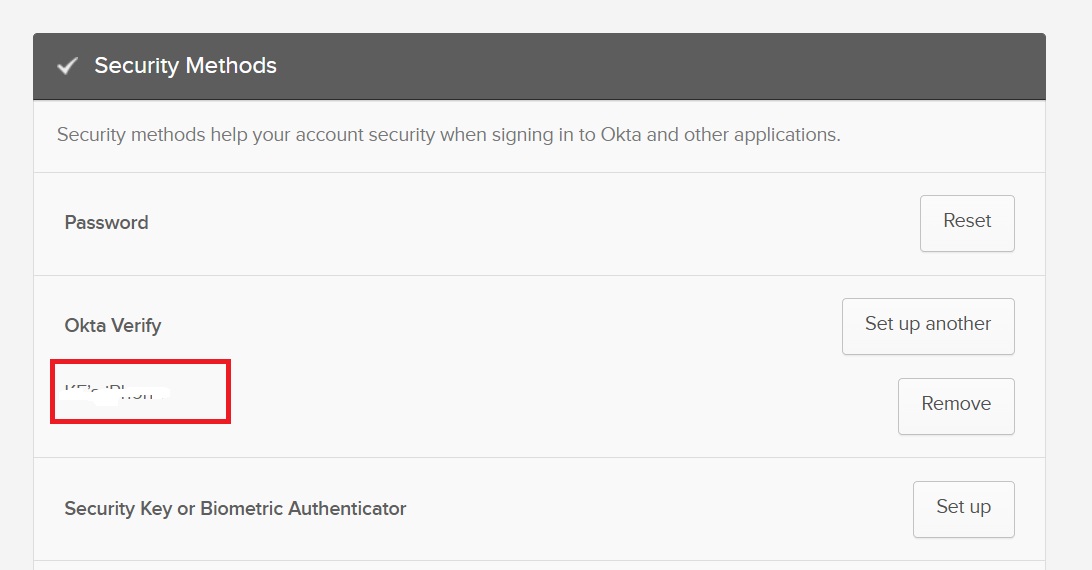
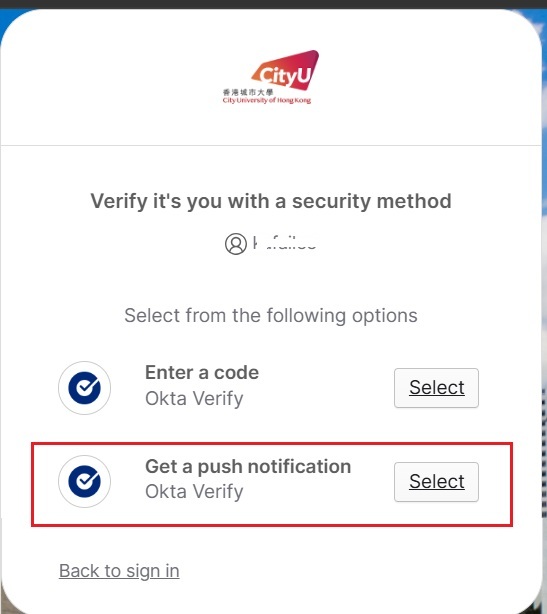
After MFA is set up, you will be asked to verify your identity when signing in to CityUHK IT services.
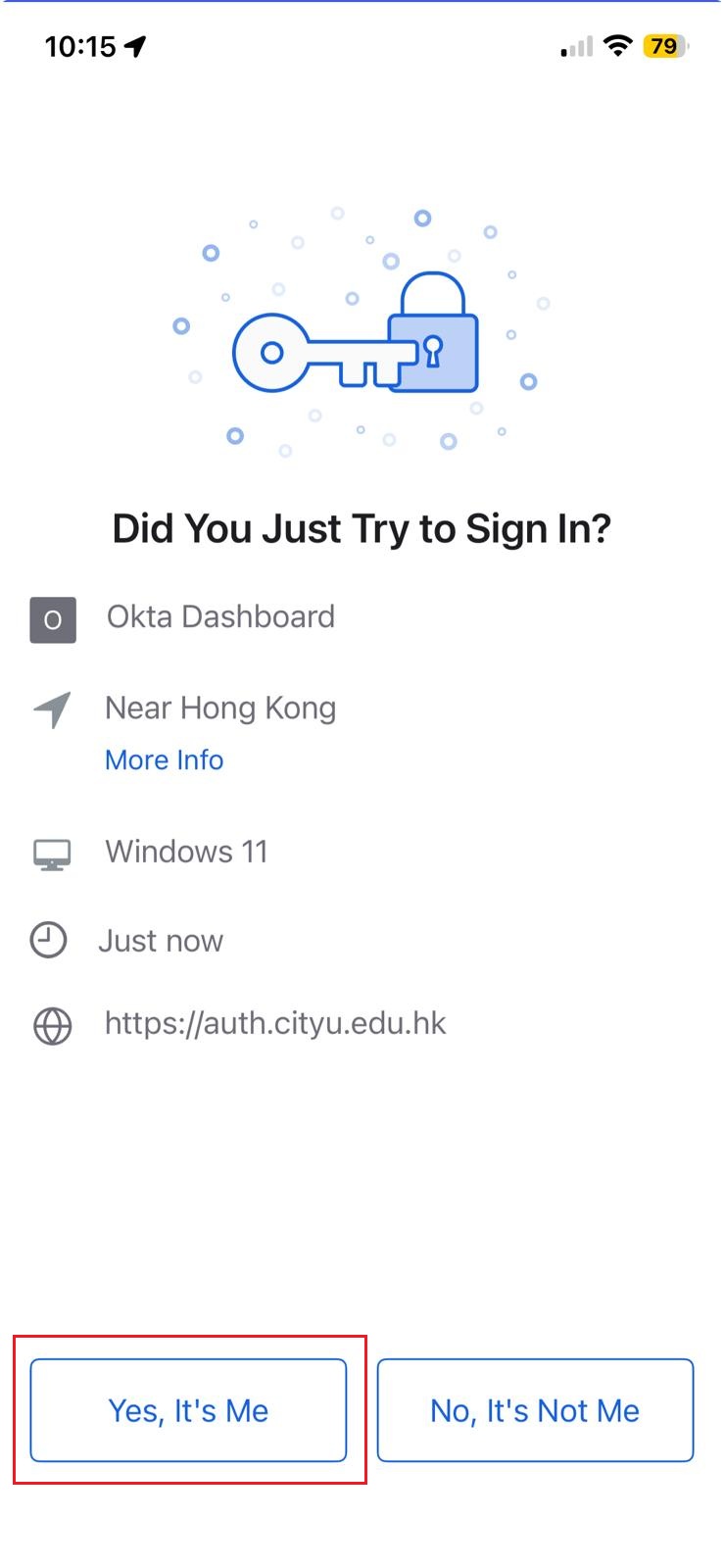
Important: Only approve Okta Verify requests that you started yourself. If you receive a request when you are not signing in, tap No, It's Not Me.
Q1. What should I do if I cannot go through MFA and need to sign in urgently?
A1. If you need to sign in urgently and cannot complete MFA, use the Service Portal self-service function to temporarily disable MFA for the day. You may also contact the IT Service Desk for assistance. (Warning: Use this option only when necessary. Temporarily disabling MFA increases the risk of account compromise.)
Q2. Can I use Okta Verify without mobile data or Wi-Fi?
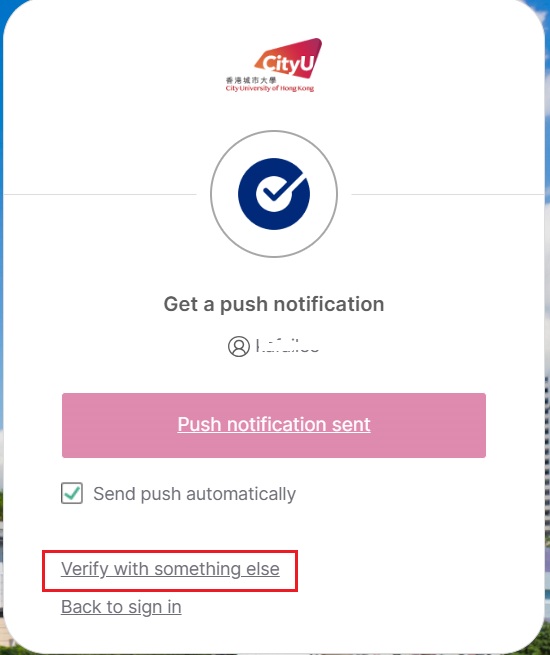
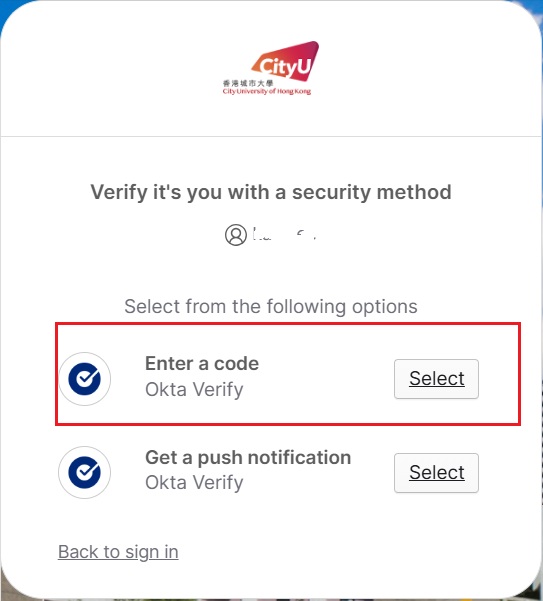
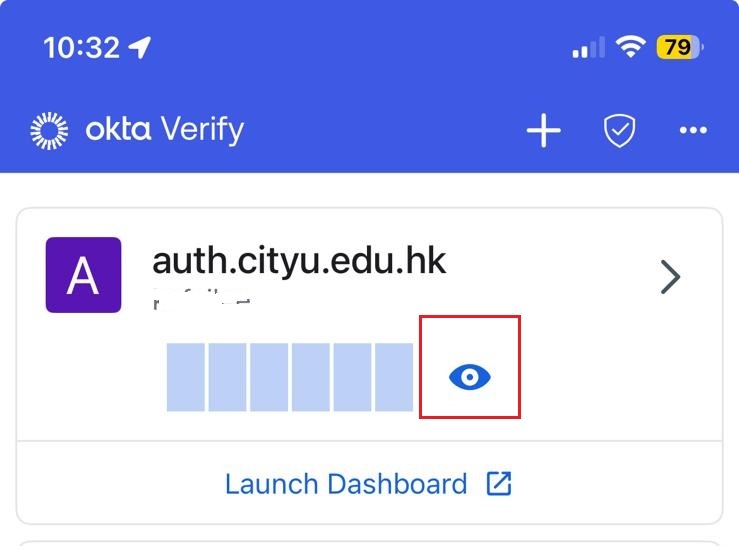
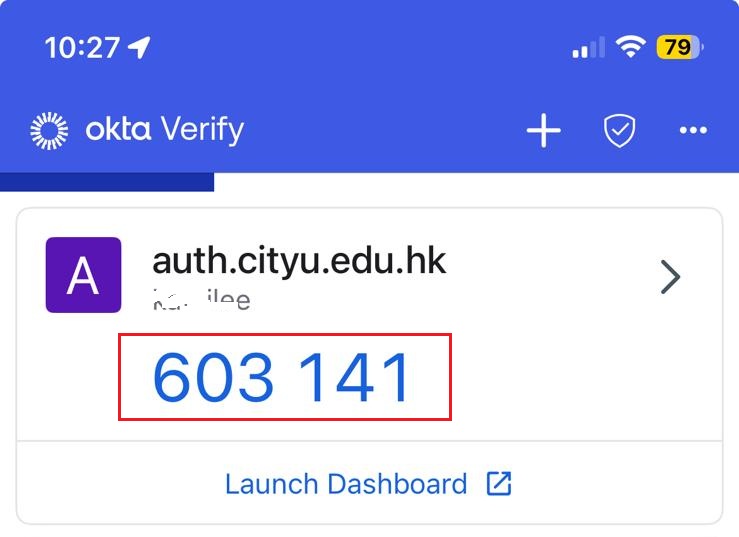
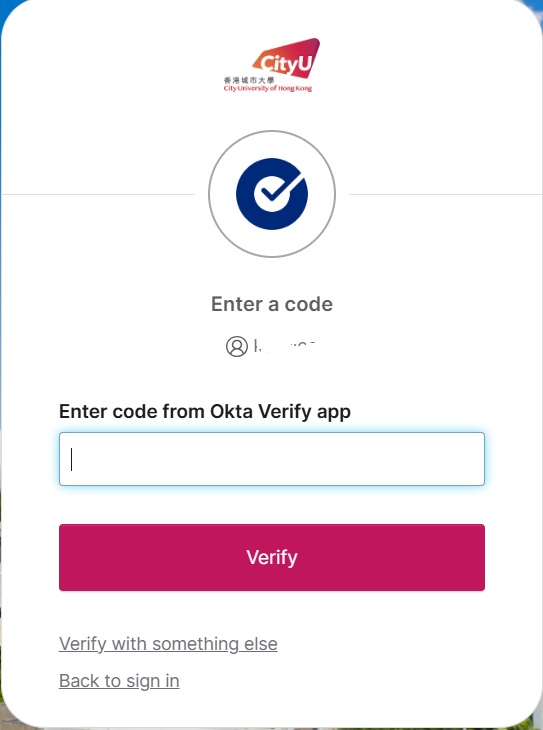
A2. Yes. You can use the 6-digit code in Okta Verify. This code works without mobile data or Wi-Fi because it is generated on your phone.
Q3. Can I use MFA when travelling overseas?
A3. Yes. If your mobile phone has mobile network or Wi-Fi access, Okta Verify works in the same way as it does in Hong Kong.
Q4. What should I do if I forget to bring my mobile phone?
A4. If you need to sign in urgently and cannot complete MFA, use the Service Portal self-service function to temporarily disable MFA for the day. You may also contact the IT Service Desk for assistance. (Warning: Use this option only when necessary. Temporarily disabling MFA increases the risk of account compromise.)
Q5. What should I do if I get a new phone?
A5. You can register Okta Verify on more than one mobile phone. After setting up your new phone, you can remove the old phone registration. You can follow the user guide.
Q6. What if my mobile phone cannot access Google Play?
A6. If your phone cannot access Google Play, use the CityUHK-provided download method for Okta Verify, refer to Step 1: Install Okta Verify in the setup guide above.
Q7. Does MFA work in Mainland China?
A7. Yes. For iPhone, download Okta Verify from the Apple App Store. For Android or Harmony devices, use the CityUHK-provided APK download method. After installation, the user experience is the same as in Hong Kong.
Q8. How do I clear remembered MFA sessions?
A8. Sign in to the CityUHK SSO Portal and clear the remembered MFA session from there.
IT.ServiceDesk@cityu.edu.hk