Okta Verify can be installed on multiple mobile devices, this guide shows how to set it up on the new device.
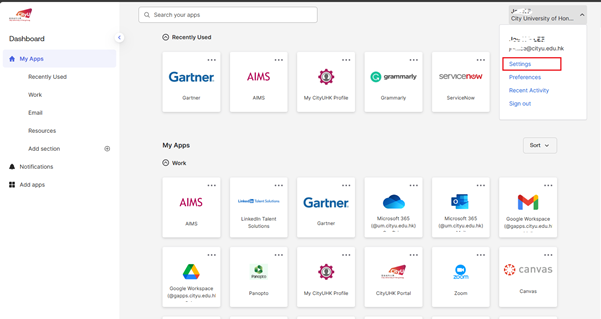
Pull down the menu on top right corner, Click "Settings".
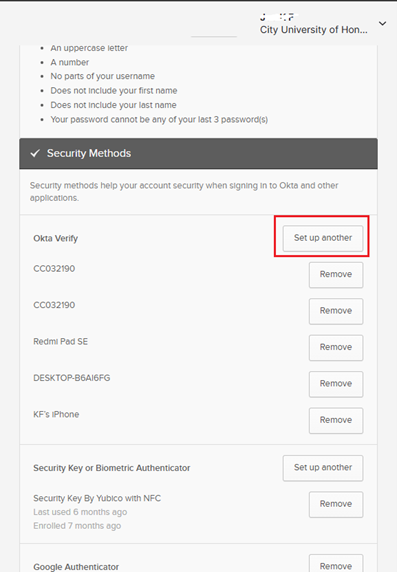
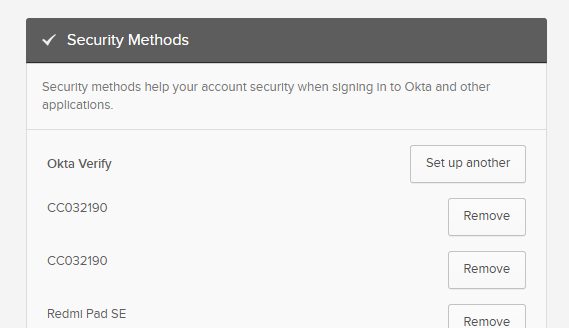
Scroll down the page and find the "Security Methods" section. Click "Set up another" for Okta Verify.
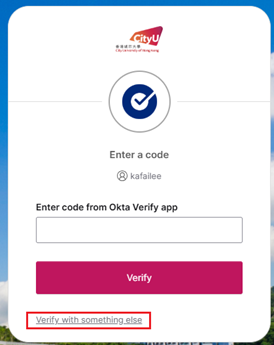
You will be asked MFA that you used previously. For some situations like you change the mobile phone and can't access the Okta Verify installed on the old phone, you click "Verify with something else" to change to another method like SMS or email.
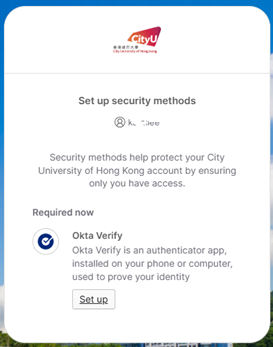
Click the "Set up" button.
You will see the QR code on the page. Open the Okta Verify app on your phone.

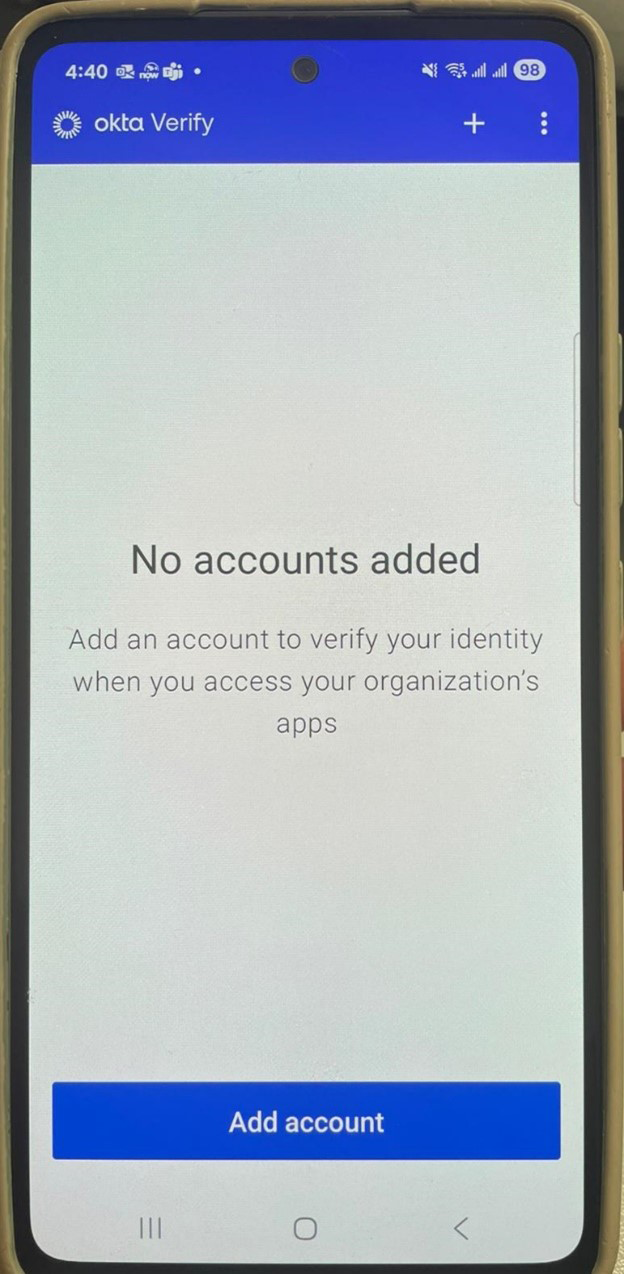
Tap "Add account".
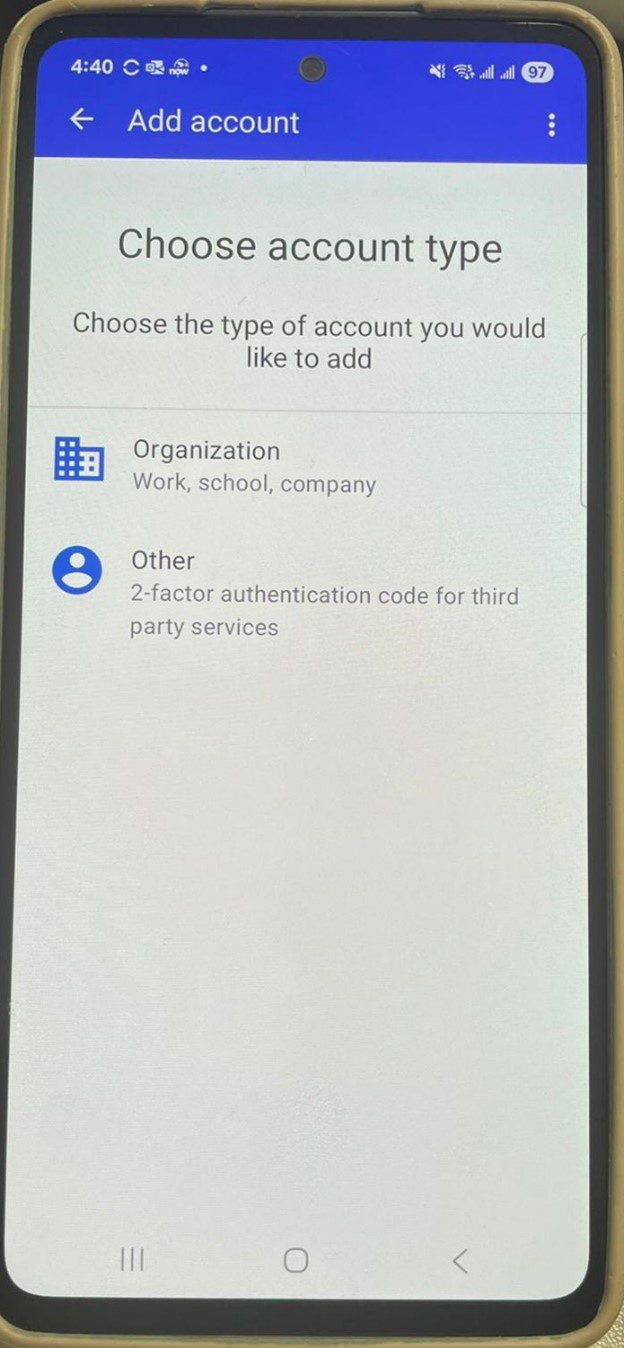
Tap "Organization".
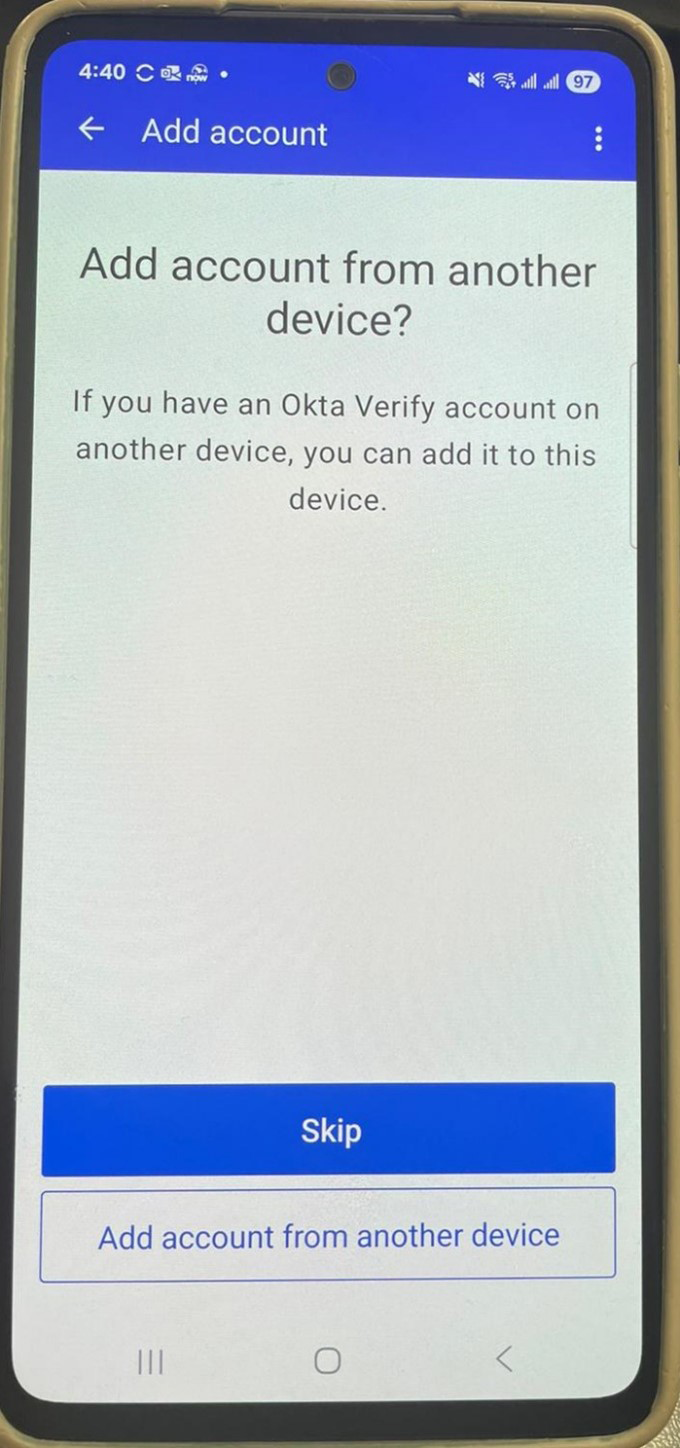
Tap "Skip".
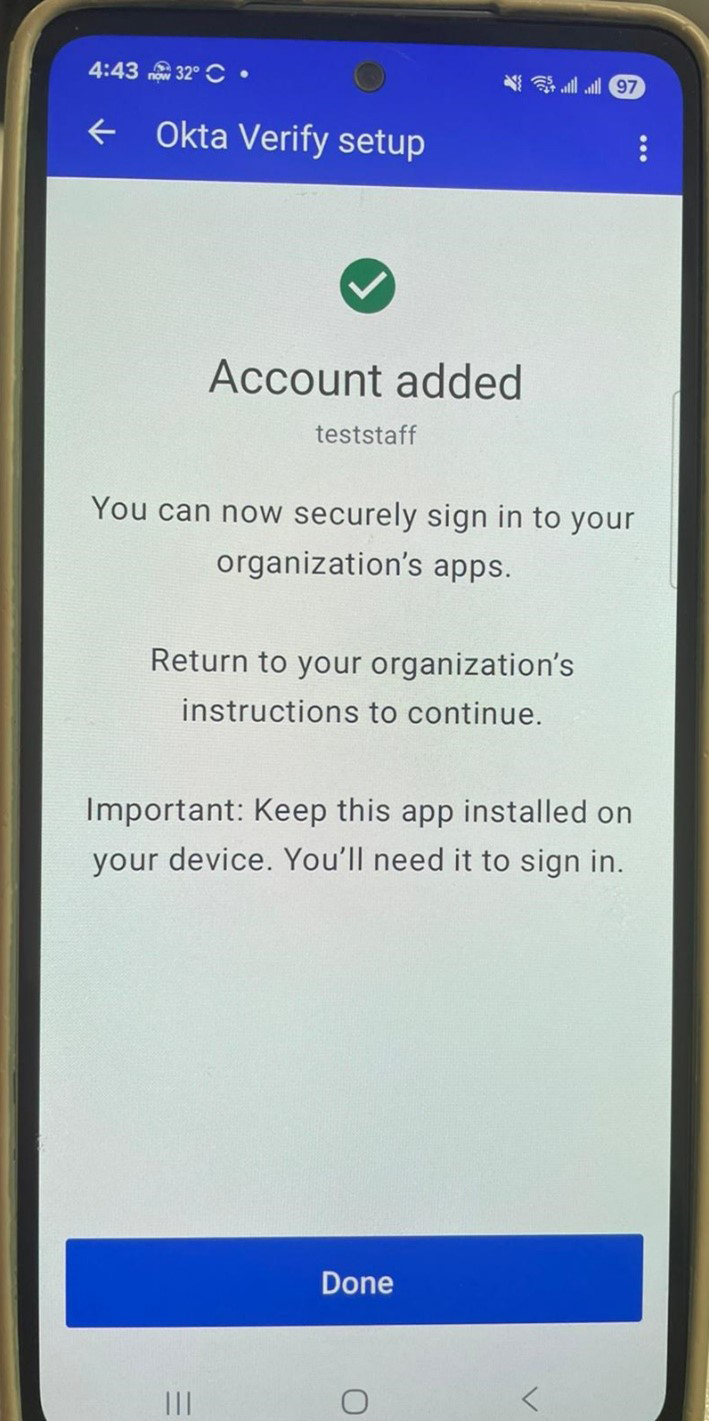
If it is successful, tap "Done".
You will see the name of the device under Okta Verify.
IT.ServiceDesk@cityu.edu.hk