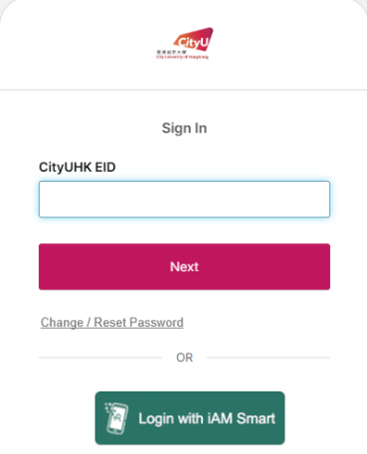
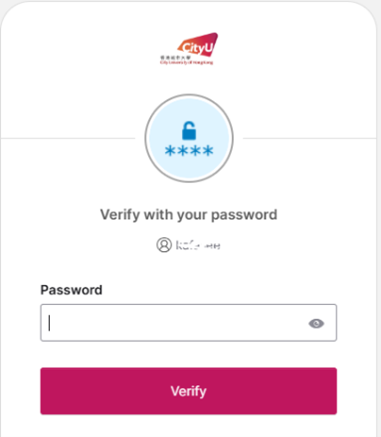
Input your EID and password
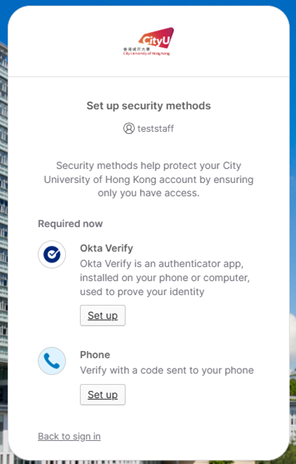
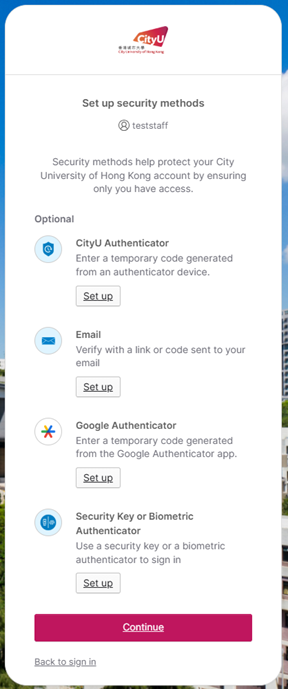
"Set up security methods" page will be prompted, click the "Set up" button below Okta Verify.
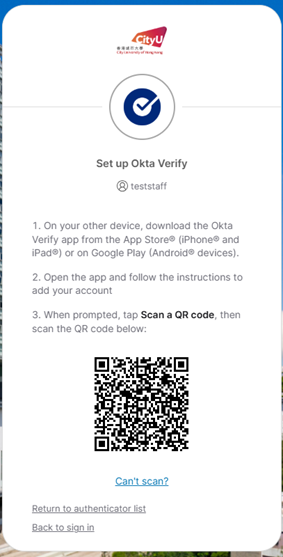
You will see a QR code page like this. Open the Okta Verify app on your phone.
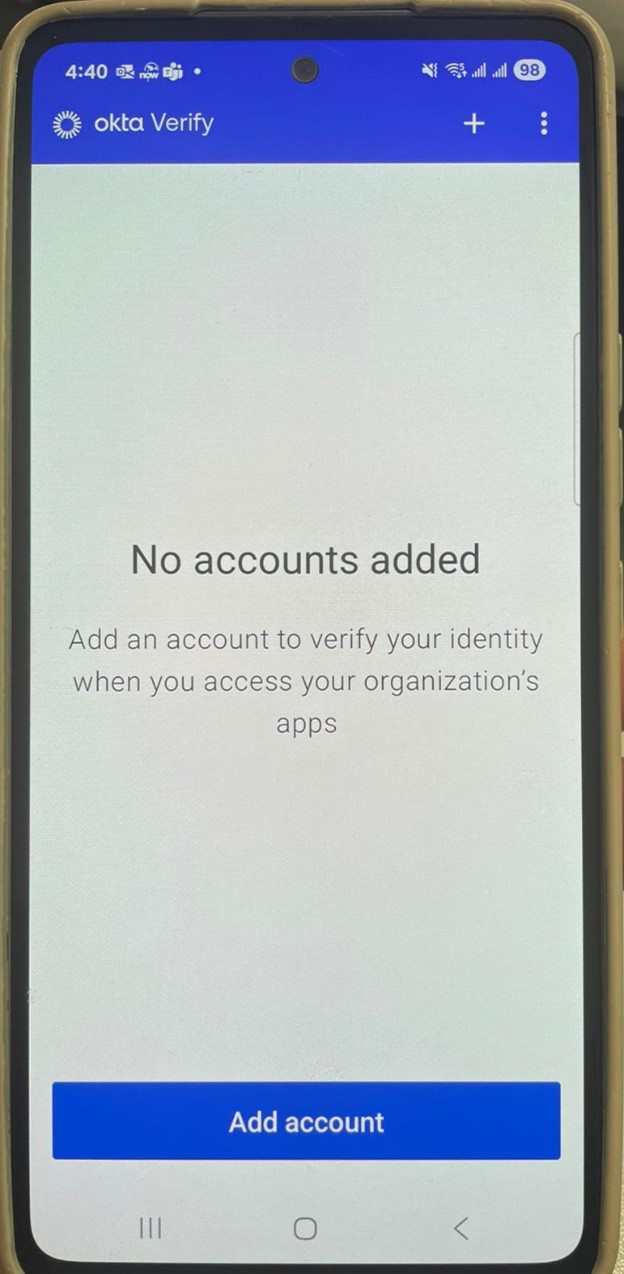
Tap "Add account".
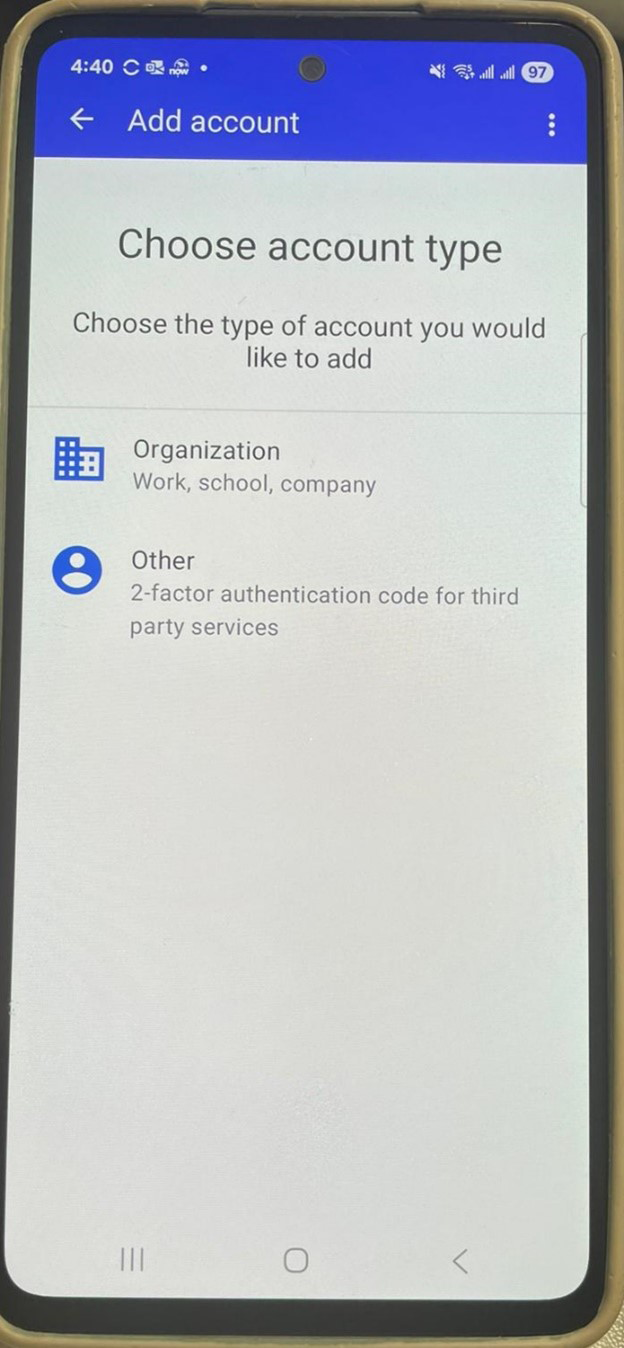
Tap "Organization".
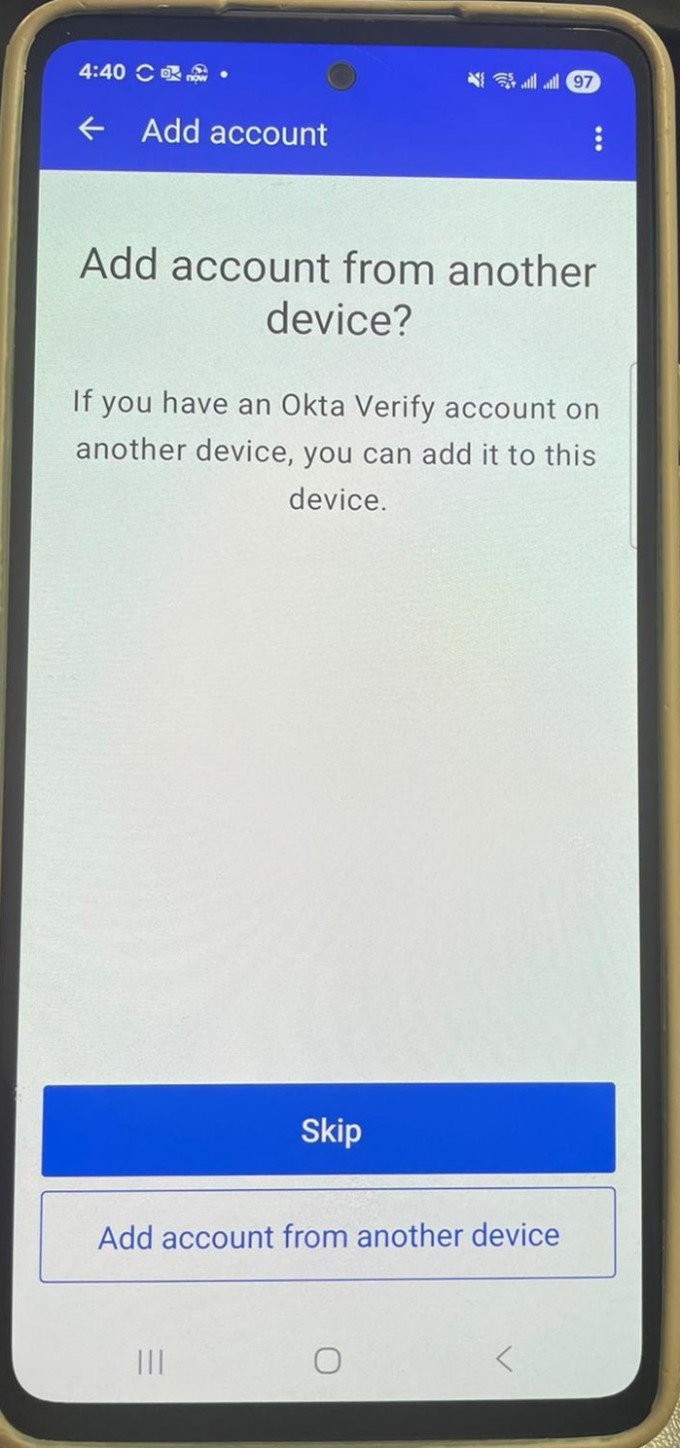
Tap "Skip".
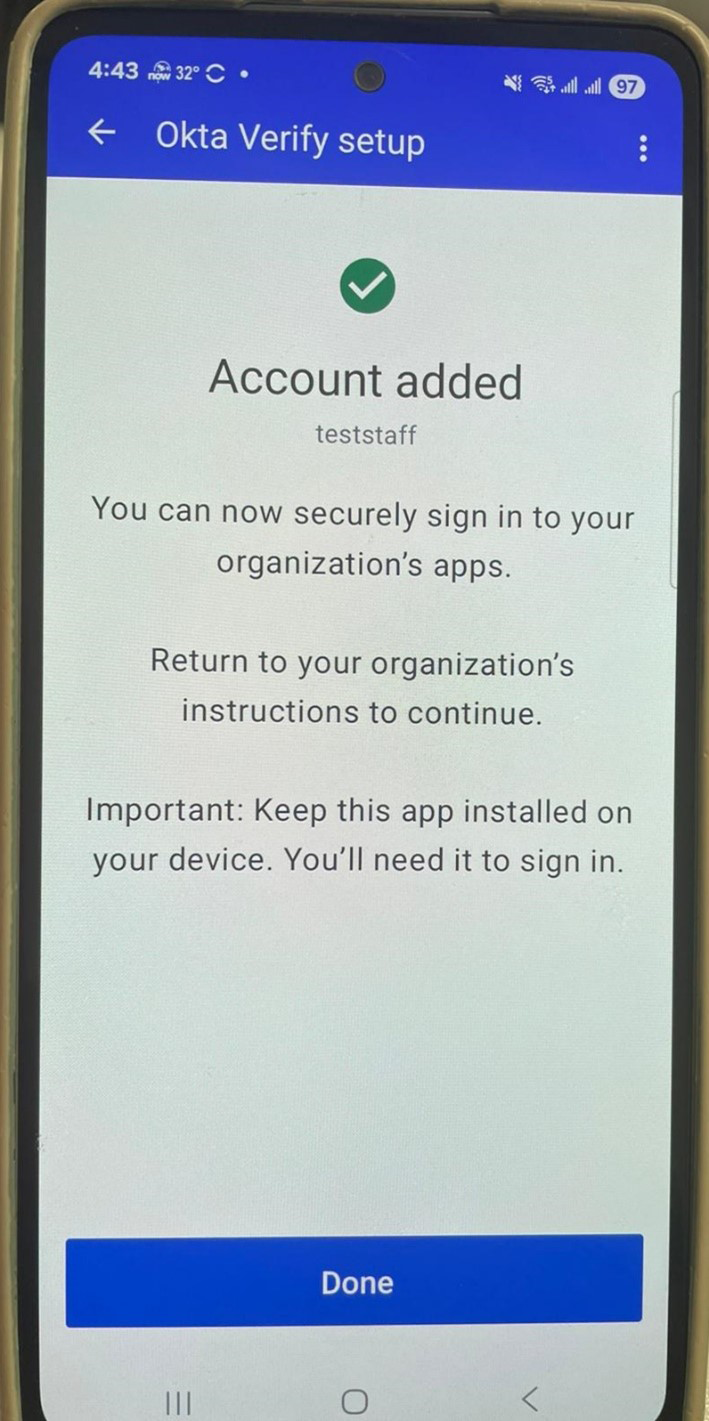
If it is successful, tap "Done".
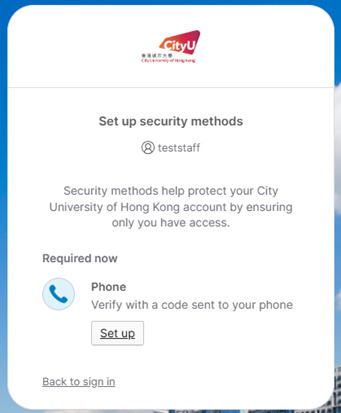
After finishing setting Okta Verify, you have to set SMS for MFA. Click the "Set up" button under Phone.
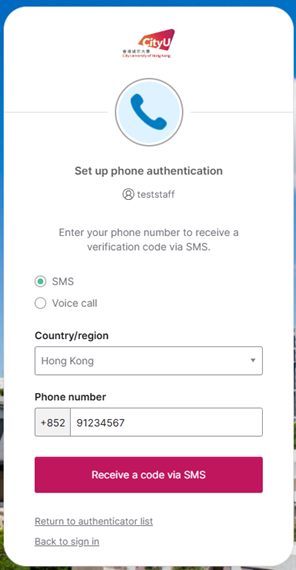
Choose "Hong Kong", type the phone number, click "Receive a code via SMS".
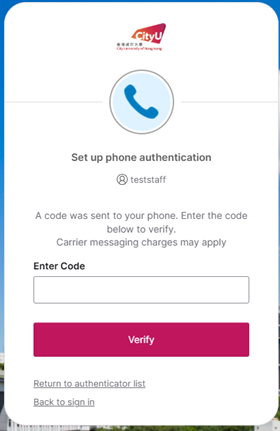
Check the SMS code sent to your phone, type it in the box, then click "Verify".
After setting SMS, you can set other security methods optionally, or you can just click "Continue" to move on and set other methods later.
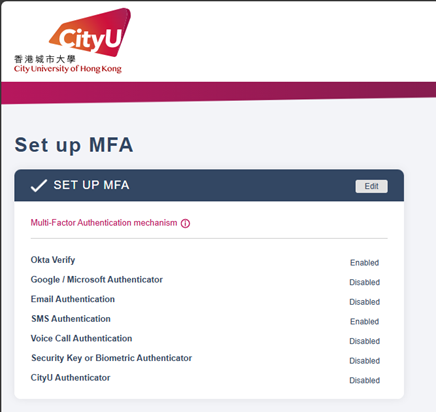
Finally, you will see "Okta Verify" and "SMS Authentication" have been enabled on this page.