Email Security Gateway FAQ
- What is email security gateway?
- What is Quarantined Email Digest?
- How to release a quarantined message?
- How to add a Safe Sender (Allow Sender) or Block a Sender?
- Why do links in an external email start with https://urldefense.com/v3/?
- What happens when I click a rewritten URL?
1. What is email security gateway?
An Email Security Gateway helps protect users from email threats such as phishing, malware, ransomware, credential theft, and email fraud. It uses Artificial Intelligence (AI), machine learning, and global threat intelligence to detect and quarantine suspicious emails before they reach your inbox.
2. What is Quarantined Email Digest?
A Quarantined Email Digest is a summary of emails that have been identified as possible spam or phishing and quarantined by the Email Security Gateway. The digest is sent daily at 4:00 PM to 5:00 PM from quarantine.email@cityu.edu.hk with the subject:
"Quarantined Email Digest: xx New Messages"
You can review the quarantined emails and perform the following actions:
- Release – Deliver the email to your inbox.
- Release and Allow Sender – Deliver the email and add the sender to your Safe Sender List.
- Not Spam – Mark the email as legitimate and help improve filtering accuracy.
- Report Phish – Mark the email as phishing and help improve filtering accuracy.
- Request New End User Digest – Receive an updated digest.
- Request Safe/Blocked Senders List – Receive a list of your safe and blocked senders.
- Manage My Account – Open the Email Security Gateway portal to view quarantined emails and manage your settings.
Understanding the Score
For the Score, it places spam on a scale from 1 to 100; the higher the score, the higher the probability that the message is a spam.
3. How to release a quarantined message?
Quarantined emails are listed in a table in the Quarantined Email Digest.
To release an email:
- Click Release under the Action column to deliver the email to your inbox.

OR
- Click the email Subject to preview the message in your web browser.
- Review the email and click Release to deliver it to your inbox.
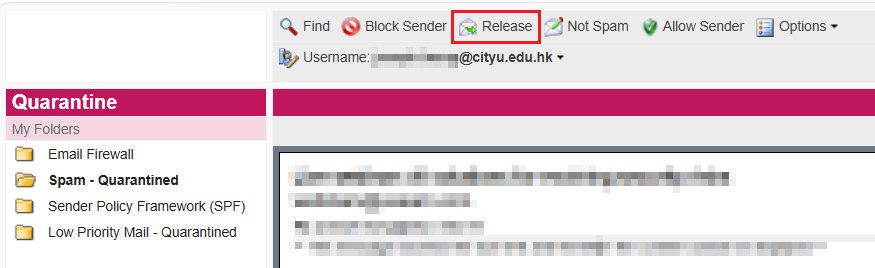
4. How to add a Safe Sender (Allow Sender) or Block a Sender?
- Click the email Subject to open the message.
- Click Allow Sender to add the sender to your Safe Sender List.
OR
- Click Block Sender to add the sender to your Blocked Sender List.

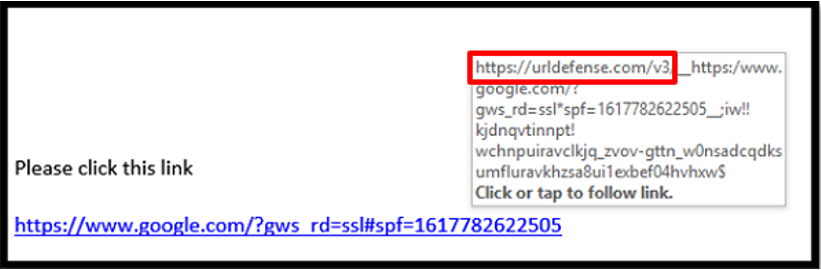
5. Why do links in an external email start with https://urldefense.com/v3/?
The Email Security Gateway uses URL Defense to protect users from malicious websites.
When an external email contains a web link, the link is automatically rewritten with the prefix:
https://urldefense.com/v3/
When you click the link, URL Defense checks the destination website:
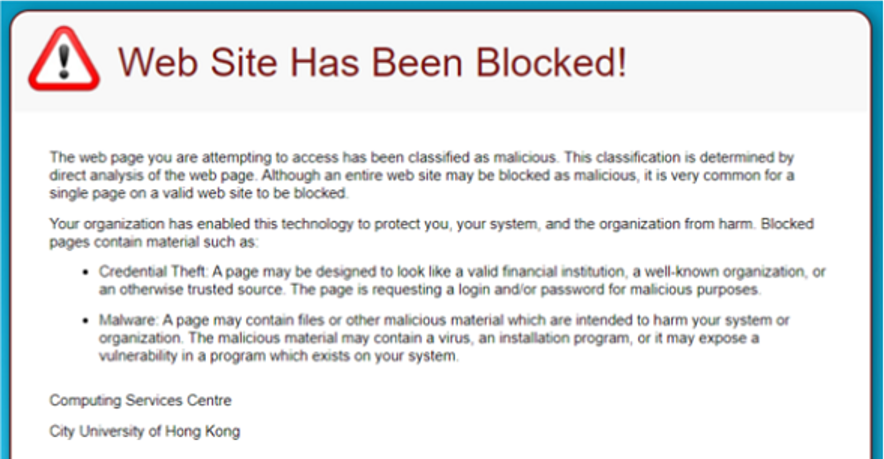
- If the website is malicious, a warning page will be displayed.
- If the website is safe, you will be redirected to the original website
6. What happens when I click a rewritten URL?
When you click a rewritten URL, the Email Security Gateway checks the destination website before allowing access.
- If the website is malicious, a warning page will be displayed.
- If the website is safe, you will be redirected to the website.
This additional security check helps protect users from phishing websites, malware, and other online threats.
IT.ServiceDesk@cityu.edu.hk