User Guide for Microsoft Copilot for Enterprise

You can use the free version of Microsoft 365 Copilot – Copilot Chat on your computer in these ways:

  1. A) Microsoft 365 Copilot app
  2. B) Web browser at https://m365.cloud.microsoft/chat
  3. C) Microsoft Outlook
  4. D) Microsoft Teams

A) Microsoft 365 Copilot app

  1. Click this link to download and install the Microsoft 365 Copilot app.
  2. Sign in using your CityUHK Microsoft 365 account:
    • Staff: eid@um.cityu.edu.hk
    • Student: eid-c@my.cityu.edu.hk
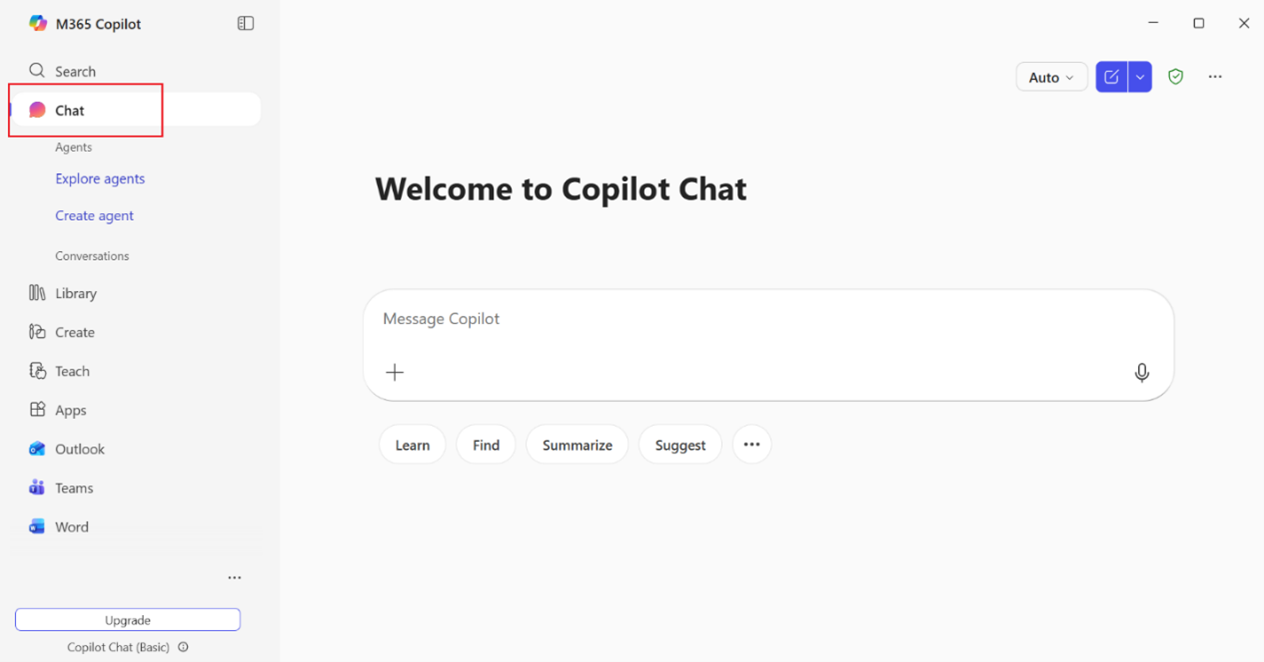
  3. Select Chat from the left-hand menu to begin using Copilot Chat.
    Chat

B) Web browser

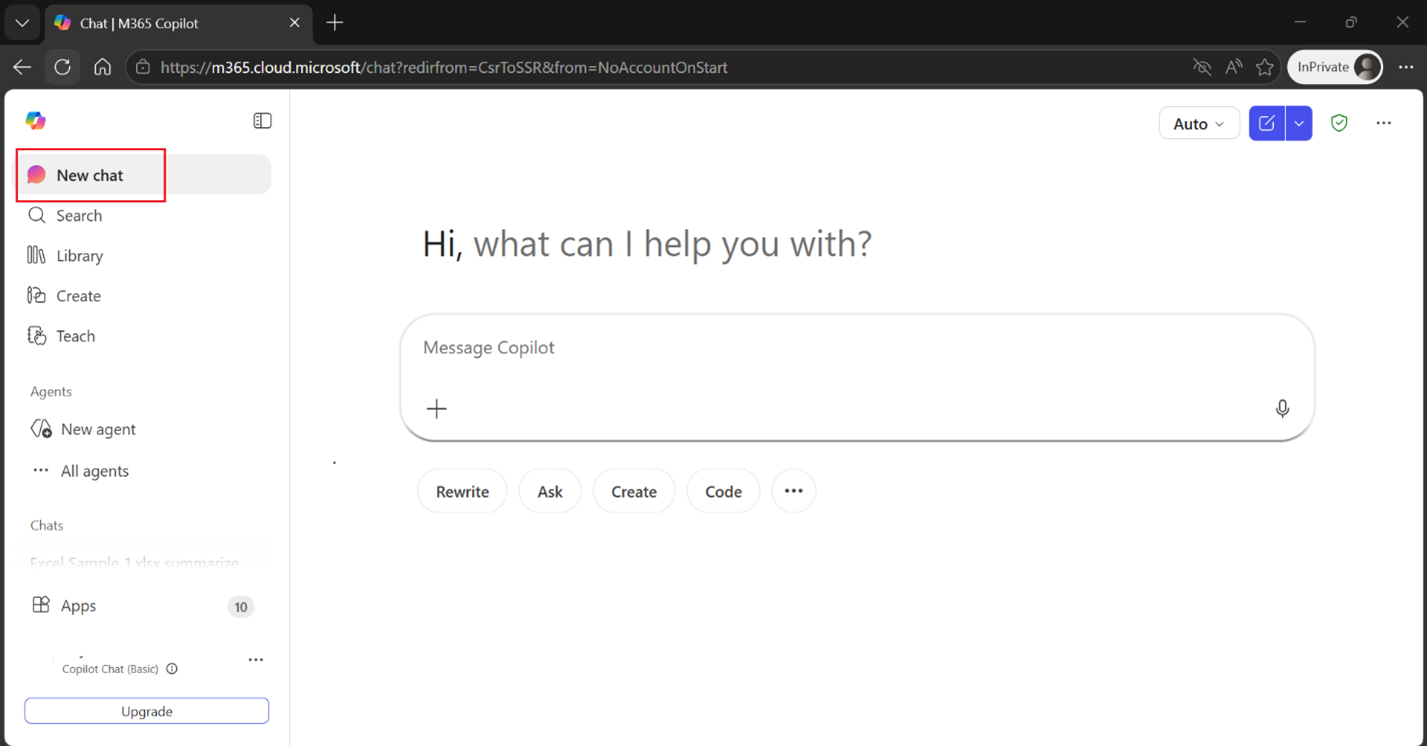
  1. Open a browser and go to https://m365.cloud.microsoft/chat.
  2. Sign in using your CityUHK Microsoft 365 account:
    • Staff: eid@um.cityu.edu.hk
    • Student: eid-c@my.cityu.edu.hk
  3. Click New Chat on the left to start a conversation with Copilot Chat.
    New_Chat

C) Microsoft Outlook

Copilot Chat can assist you directly while reading or replying to emails in Outlook.
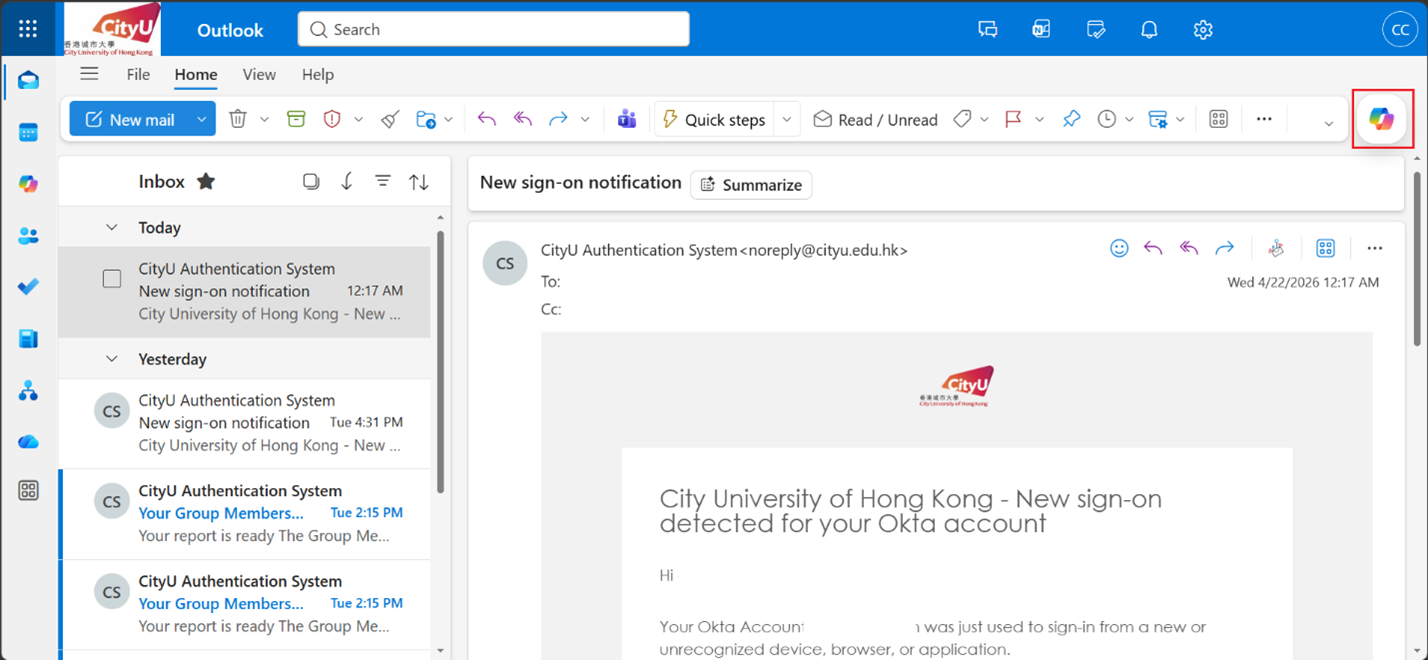
  1. Open an email message in Outlook.
    Outlook
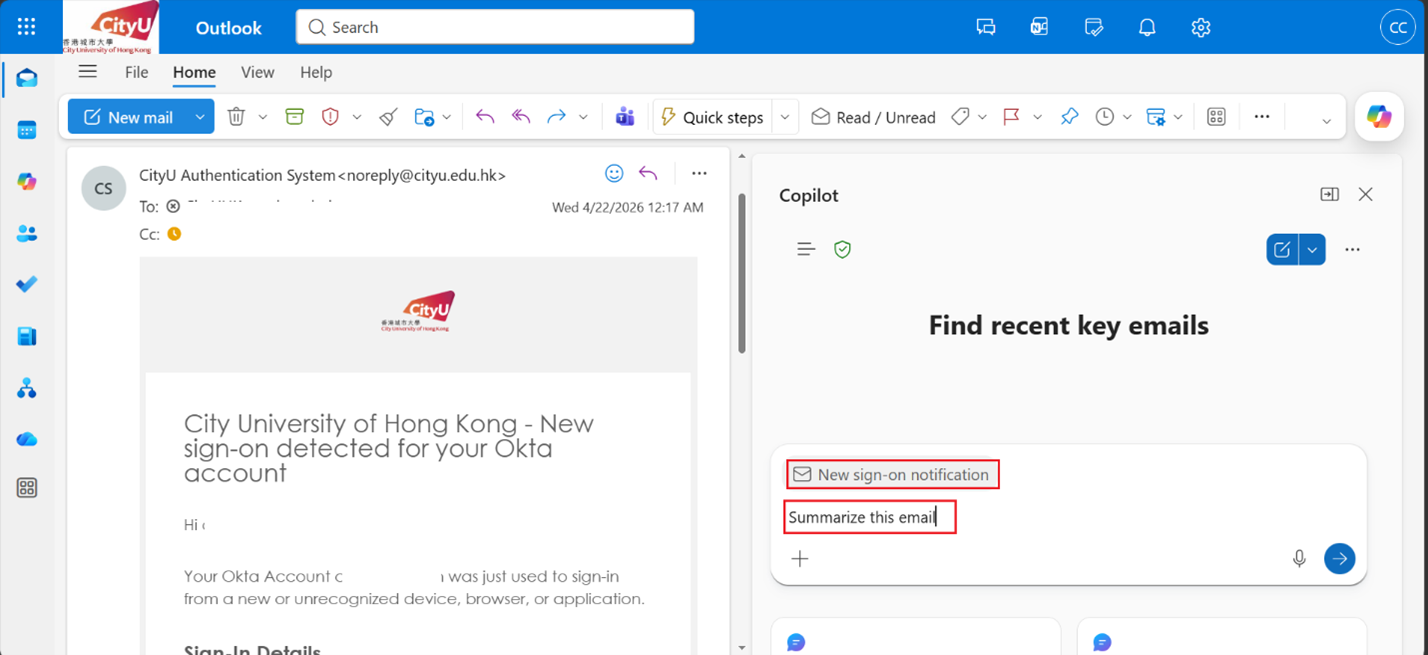
  2. Click the Copilot icon at the top-right corner.
  3. You can ask Copilot to summarize the email or draft a reply based on its content.
    Copilot

D) Microsoft Teams

  1. Open Microsoft Teams.
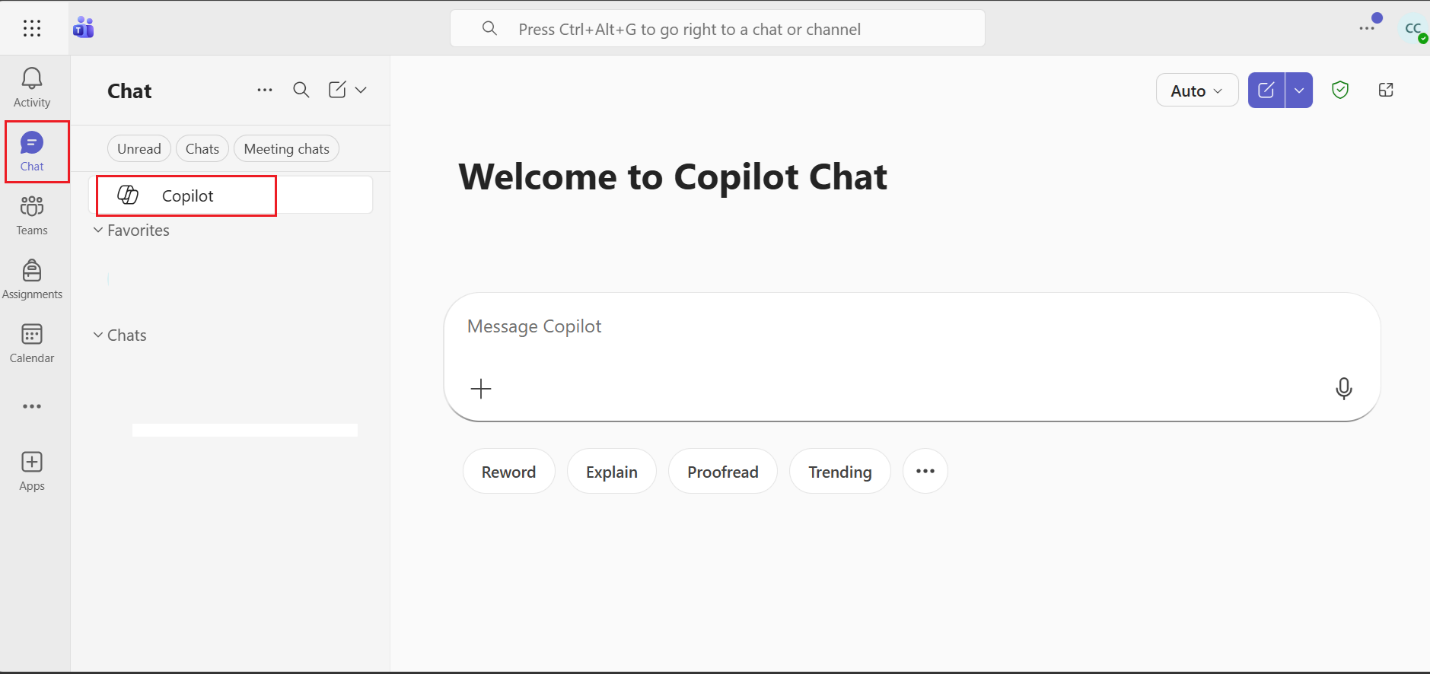
  2. Click Chat on the left-hand panel.
  3. Select Copilot to open the Copilot Chat interface and start prompting.


IT.ServiceDesk@cityu.edu.hk